
Route work by team
Create inboxes for Sales, Support, or other teams. Set who can access each inbox, how work is assigned, and where unmatched requests go.
Inbox
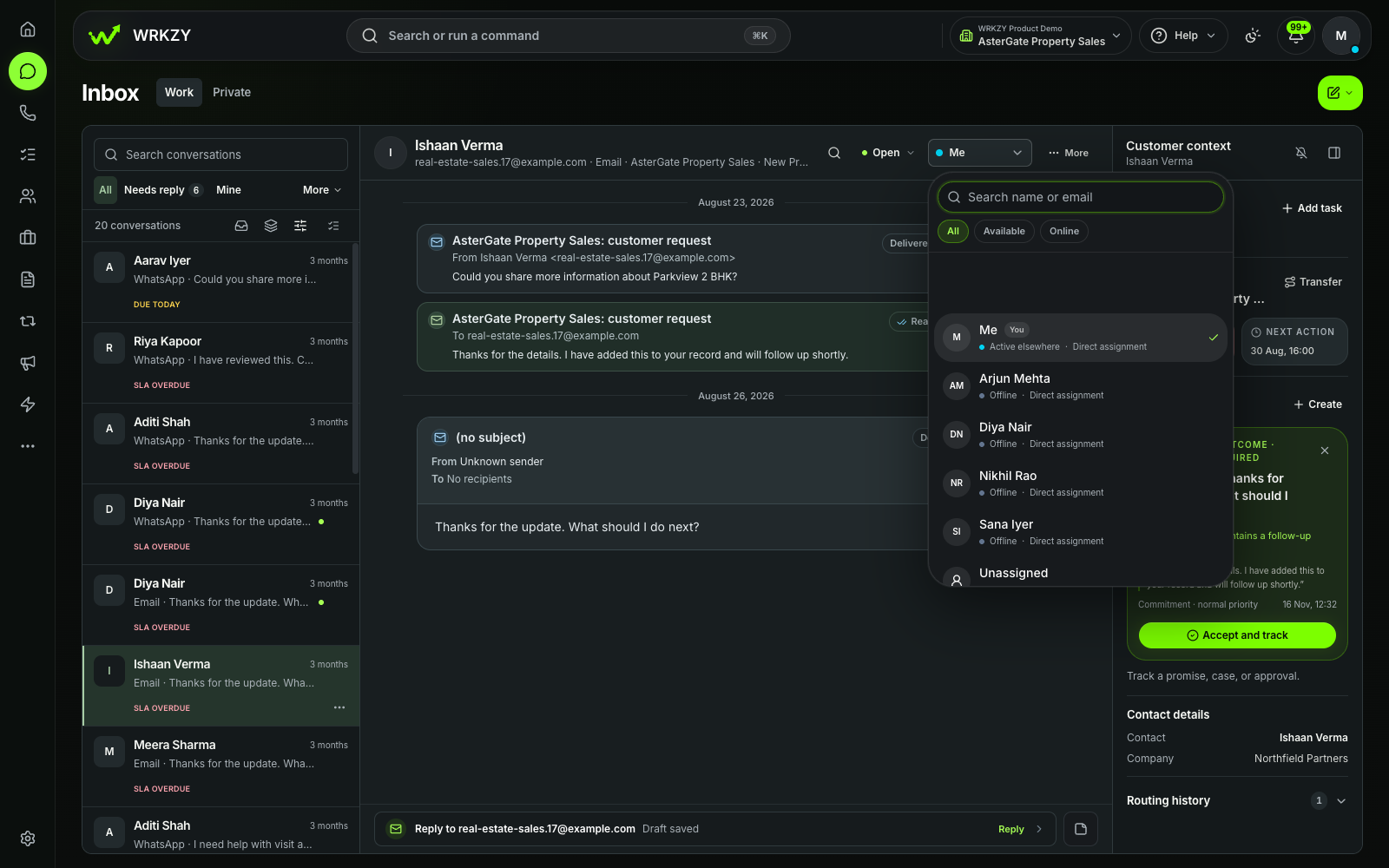
Give each conversation an owner. Reply with the customer’s history in view, then set the next step or resolve it.
Can you send the revised quote?
Inside WRKZY
See how an email enquiry moves from the queue to an owner, a reply, and a recorded next step or resolution.
Demo workspace · Captured November 13, 2026
Queues and team routing
Connect a supported WhatsApp number or shared email address. Choose the team inbox that receives each channel and how new work gets assigned.
Create inboxes for Sales, Support, or other teams. Set who can access each inbox, how work is assigned, and where unmatched requests go.
Use Needs reply, Mine, Unassigned, or Follow-ups. Narrow the list by team, channel, and filters, or use quick actions to claim work and set a follow-up.
Assign an owner, add an internal note, or transfer the thread to another team inbox. Send a conversation link to a teammate who already has access.
Choose an inbox
vehicle · car · model · price
Want the complete workflow? See the Automotive story →
Configurations from our 13 industry demos. Choose your own inbox names, members, and routing rules.
WhatsApp and email replies
Search earlier messages, reopen shared files, and check the customer’s deals, quotes, and recent activity before you answer.
Search saved replies, attach files, record a voice note, or share a location or contact card. When the reply window closes, choose an eligible approved template.
Reply inline or expand the composer to review recipients and the subject. Resume saved drafts, use email templates and team signatures, or schedule an email for later.
Summarize a thread, draft a response, rewrite it, or translate it. Review the suggested wording and send when you’re ready.
Follow-ups and outcomes
Set priority and a response deadline. Schedule the next action, or create an assigned task if the work needs its own owner and due date.
Check whether your message was sent, delivered, read, or failed. Inspect the recorded reason before retrying an uncertain or failed send.
Set the conversation to Pending while work continues. Resolve it with an outcome when the request is complete, or reopen it if work resumes.
Share a quote or link the work to a customer record so the next person can see what was promised and what still needs doing.
FAQ
Yes. Connect a supported WhatsApp Business account and team email address. Filter the shared inbox by channel when you want to focus on one.
Set up incoming team mail, then connect Google Workspace, Microsoft 365, or SMTP to send from your shared address. Read the team email setup guide.
A customer message opens or resets the window. After 24 hours, select Choose template to send an eligible approved template. The next message from the customer reopens the window.
Try Inbox
Connect a team email address or WhatsApp number and give the next customer reply a clear owner.
Start free trial14-day Growth trial · No card requiredWhatsApp and email-provider usage fees are separate.