
- A verified customer conversation in the intended workspace
- An approved connected sender that is ready to send
- Permission to share the message, template, quote, and attachment content
Review before you compose
- Confirm customer identity using the conversation and Contact 360 context.
- Read the latest inbound message and enough prior thread to understand the request.
- Confirm the team inbox, channel, sending identity, and current owner.
- Check related deal, quote, campaign, or prior commitment when the response depends on it.
- Decide the outcome the message should create: answer, clarify, acknowledge, request information, deliver a quote, or set expectation.
Write a direct reply
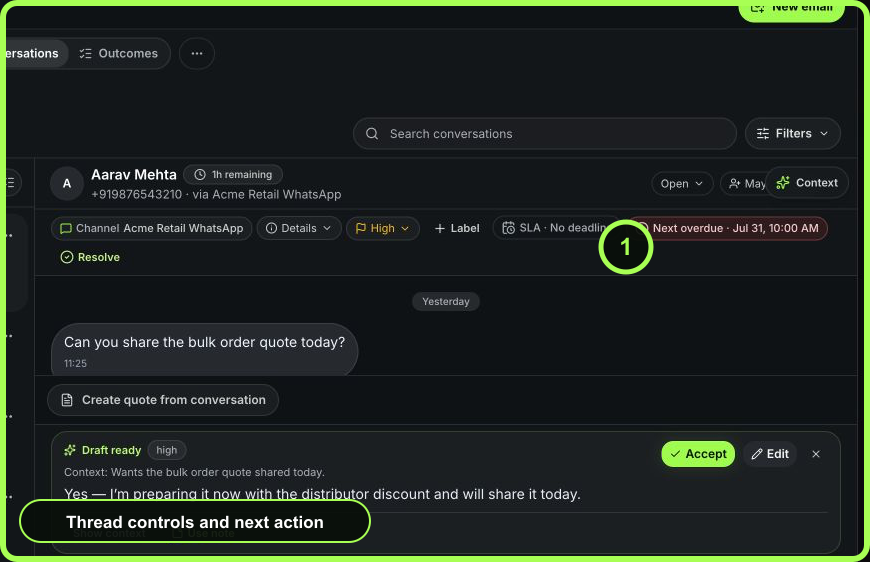
- Place the cursor in the composer.
- State the answer or next step first.
- Include only commitments the team can verify.
- Use a specific date/time and timezone when promising a follow-up.
- Review tone, names, numbers, links, and policy language.
- If AI helped draft or rewrite, treat the output as untrusted draft text: verify every claim and recipient before sending.
- Send once and watch the message state.
 Open full size
Add an attachment
- Choose the attachment control.
- Select only the file required for this customer and action.
- Verify the filename, format, version, and intended recipient.
- Remove local metadata or sensitive pages that are not necessary.
- Confirm the attachment appears on the draft before sending.
- After sending, reopen the message and verify the attachment is represented in the message history.
Do not attach exports or screenshots containing unrelated customers. If an upload or send fails, inspect the error before selecting the file again; a prior attempt may have created message evidence.
Use a WhatsApp template
When the channel requires or the workflow calls for an approved WhatsApp template:
- Open the template picker.
- Choose the approved template matching the purpose and language.
- Review every rendered variable against the current customer and record.
- Supply required header media only when it matches the approved template structure.
- Review any buttons or offer terms.
- Send the template once, then inspect status.
Never infer a variable. A template greeting and order-reference placeholder must receive the correct customer name and order reference from verified context.
Use an email template
For a shared email conversation, select an available email template or start from approved reusable content. Review subject, To, Cc, Bcc, body, links, attachments, and sender. A template is a starting point; customer-specific claims and quoted commercial terms still require human verification.
If the current shared email connection is not send-ready, stop and have an administrator repair direct sending rather than relying on an unintended identity.
Share a quote from the conversation
Where the conversation offers quote controls, select the intended current quote and verify its customer, version, total, validity, and buyer-delivery path. A quote attachment or link does not replace quote lifecycle evidence; confirm delivery and buyer response on the quote record.
Verify the message
Reply verification flow
- 01LocalPrepared
Content and recipient are ready but nothing has left WRKZY.
- 02PendingSubmitted
WRKZY handed the request to the connected provider.
- 03AcceptedProvider accepted
The provider accepted processing, not necessarily delivery.
- 04ResultDelivered or failed
A terminal provider event confirms delivery or an exception.
- 05RecoverException reviewed
An owner diagnoses, recovers safely, or escalates with evidence.
- Confirm the message appears once in the thread.
- Read the visible state: Sending, Sent, Delivered, Read, or Failed.
- For email, expand provider evidence when needed to review Delayed, Bounced, Complaint, Opened, Clicked, or Failed events.
- Confirm attachment/template content appears on the sent message.
- Set Pending, Next, or Resolve only after the customer commitment is represented truthfully.
Failure modes
- Failed immediately: read the visible reason and channel readiness before retrying.
- Stuck on Sending: refresh and inspect delivery health; do not click Send repeatedly.
- Sent but not Delivered: provider accepted the message, but arrival is not confirmed. Wait or follow the channel recovery path.
- Wrong content but still Sending: do not assume cancellation is possible. Escalate and correct the customer communication deliberately.
- Attachment unavailable: confirm the source file remains authorized and supported; do not substitute an unreviewed public link.
- Template variable wrong: stop the campaign/repeated workflow if applicable, preserve evidence, and send a clearly labeled correction only after approval.
- Email bounce or complaint: do not resend unchanged. Verify address, consent, and suppression policy.
Measurable reply quality
Track failed sends, duplicate retries, correction messages, delivery confirmation, and conversations reopened because the reply or attachment was incomplete. Speed is useful only after identity, accuracy, and delivery are reliable.
- Customer and latest message verified
- Intended sender and recipients confirmed
- Claims and dates supported
- Template variables reviewed
- Attachment version and sensitivity checked
- Send selected once
- Provider state inspected
- Next workflow state updated