
- Owner or Admin access to team-inbox settings
- A named responsibility group and active workspace members
- Connected channels and an explicit default/fallback routing decision
- Approved SLA, hours, access, and escalation policy
A team inbox is an operating boundary
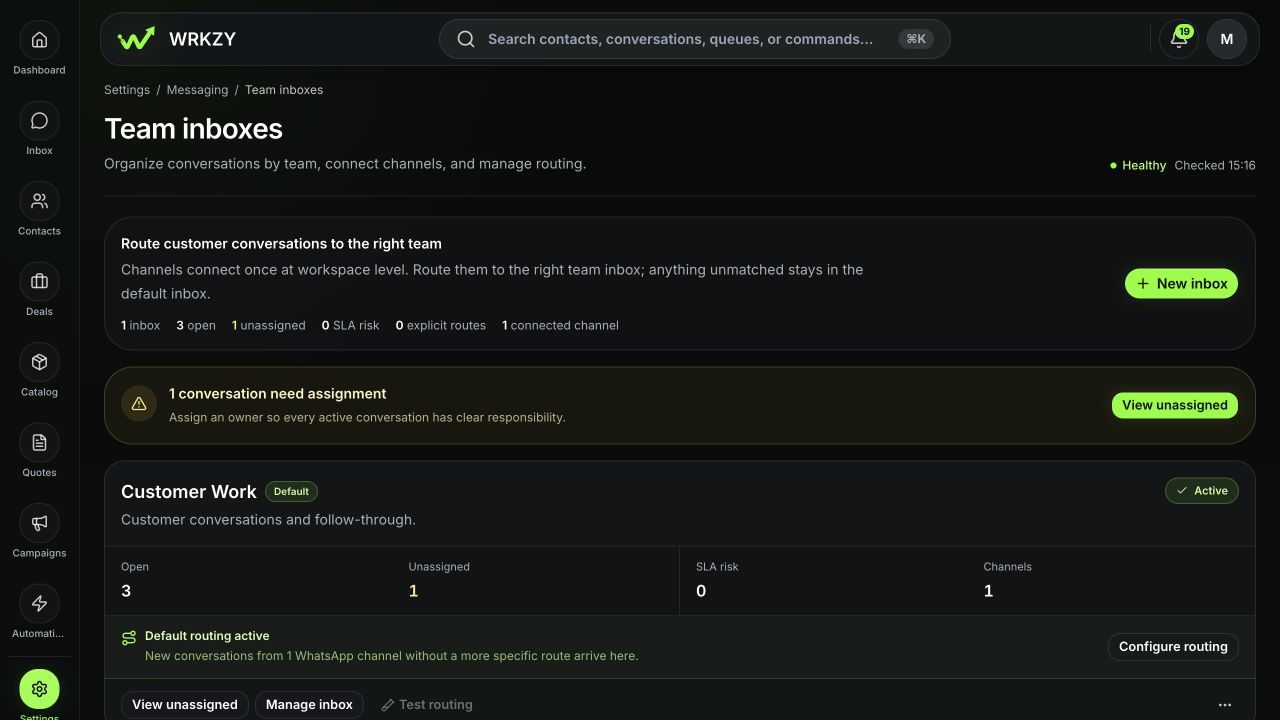
A team inbox answers five questions: what work belongs here, who can see it, which channels feed it, who becomes accountable, and when the work is late. Open Settings → Team inboxes. Avoid using one catch-all inbox for teams with different access or service policies.
Inbox routing model
- 01SourceConnected channel
WhatsApp, shared email, or another supported source receives the message.
- 02RouteTeam inbox
Channel rules place the conversation with the responsible team.
- 03TriageQueue and priority
State, SLA, and filters determine when it needs attention.
- 04OwnAccountable owner
One teammate becomes responsible for the outcome.
- 05ActReply, resolve, or follow up
The conversation ends with a visible result or next action.
Create or edit an inbox
- Select Create inbox or edit an existing inbox.
- In What will this inbox handle?, name the queue by customer purpose and add a description.
- In Who can see and work in this inbox?, choose visibility and members. Restricted inboxes require at least one member. Assign inbox roles deliberately: Manager, Member, or Viewer.
- Decide whether team AI may use the inbox. Keep it off when the content boundary is not approved.
- In Route channels, select shared email inboxes and WhatsApp senders. Mark primary routes only when this inbox is the intended default.
- In Choose assignment behavior, select the routing strategy, fallback owner, capacity, and overflow inbox.
- In Set working hours and service targets, define the operating schedule, SLA values, waiting-on-customer pause behavior, and optional reassignment.
- Configure outcome suggestions, satisfaction, accountable work, priority, and escalation only when the team has an owner for each signal.
- Review Recommended team views.
- At Review and create, inspect the summary and select Test routing before saving.
 Open full size
Test the routing decision
Use the routing preview with a representative channel and customer context. Confirm the predicted inbox, assignee or unassigned state, overflow behavior, and reason. A successful preview proves configuration logic for that input; perform a real inbound test after saving.
SLA decisions
Choose service targets that match staffed hours and actual capacity. Pause while waiting on the customer only if the team's reporting definition supports it. If capacity is blank, do not assume an implicit limit. Make escalation ownership different from ordinary routing only when the escalation owner is staffed and trained.
The default Customer Work inbox cannot be archived. Other inboxes should be archived only after their channels, open conversations, views, and ownership dependencies are moved.
Verify after save
- Send one safe test through each primary channel.
- Confirm queue, assignee, priority, and SLA timestamps.
- Test after-hours behavior and overflow with controlled context.
- View the inbox as a Member or Viewer to confirm visibility.
- Confirm routing health remains clean in Settings.
Recovery
If work routes incorrectly, do not manually move many conversations before identifying the rule. Check channel-primary mapping, visibility membership, routing mode, owner availability/capacity, overflow destination, working hours, and test-preview reason. Preserve inbox ID, channel connection ID, event time, expected and actual route, and redacted customer identifier.
- Purpose and visibility are unambiguous
- Members and inbox roles are least-privilege
- Every channel has one intended primary route
- Assignment and overflow were previewed
- Working hours and SLA behavior were tested
- Escalation has a staffed owner