
- Owner/Admin approval for a company-owned shared email address
- Provider admin or mailbox authorization for receiving and sending
- A destination team inbox and approved internal test accounts
- SMTP details only when SMTP is the approved direct-sending method
Team email or Private Mail?
Use a team email inbox for addresses such as support@, sales@, or billing@ whose messages and responses belong to a responsibility-owned group. Use Private Mail for an individual's work mailbox that must remain owner-scoped until the owner deliberately shares context.
Do not connect an executive's personal work mailbox as shared email to solve a visibility problem.
Design receiving, sending, and routing separately
An operational team email needs three working boundaries:
- Receiving: inbound mail reaches WRKZY through the configured connection/sync/forwarding path.
- Sending: WRKZY can send directly as the shared address through a verified method.
- Routing: the resulting conversation reaches the team inbox responsible for it.
A green result in one boundary does not prove the other two.
Create and configure the connection
- Confirm the workspace and shared address.
- Open Settings → Email and add the connection.
- Complete the receiving setup shown for the connection.
- Choose a direct-sending method matching the provider:
- Microsoft 365 for an Outlook/Microsoft mailbox or supported shared mailbox when the signed-in account can send as the address;
- Google Workspace for Gmail/Workspace or a supported Group/alias when the signed-in account can send as the address; or
- SMTP with approved host, port, username, security mode, and password/app password.
- Enter your own work email as test recipient where requested.
- Connect the provider or choose Test and save SMTP.
- Confirm the connection reports direct sending as connected and send-ready.
WRKZY can show a fallback sender while direct sending is incomplete. A fallback path is a continuity aid, not proof that replies use the branded shared address.
If this domain sends to personal Gmail accounts, verify authentication and delivery requirements against Google’s current email sender guidelines. The provider’s requirements apply in addition to WRKZY connection health.
Validate the sending identity
- Send the setup test to an internal recipient.
- Confirm it arrived from the exact shared address and expected display name.
- Reply to the test from the external/internal recipient.
- Confirm the reply appears in WRKZY as part of the expected conversation.
- Review the message details for provider path and events.
Provider-native sends can store a copy in the connected provider mailbox. Confirm that behavior with the business owner if their mailbox retention process depends on Sent items.
Route the connection
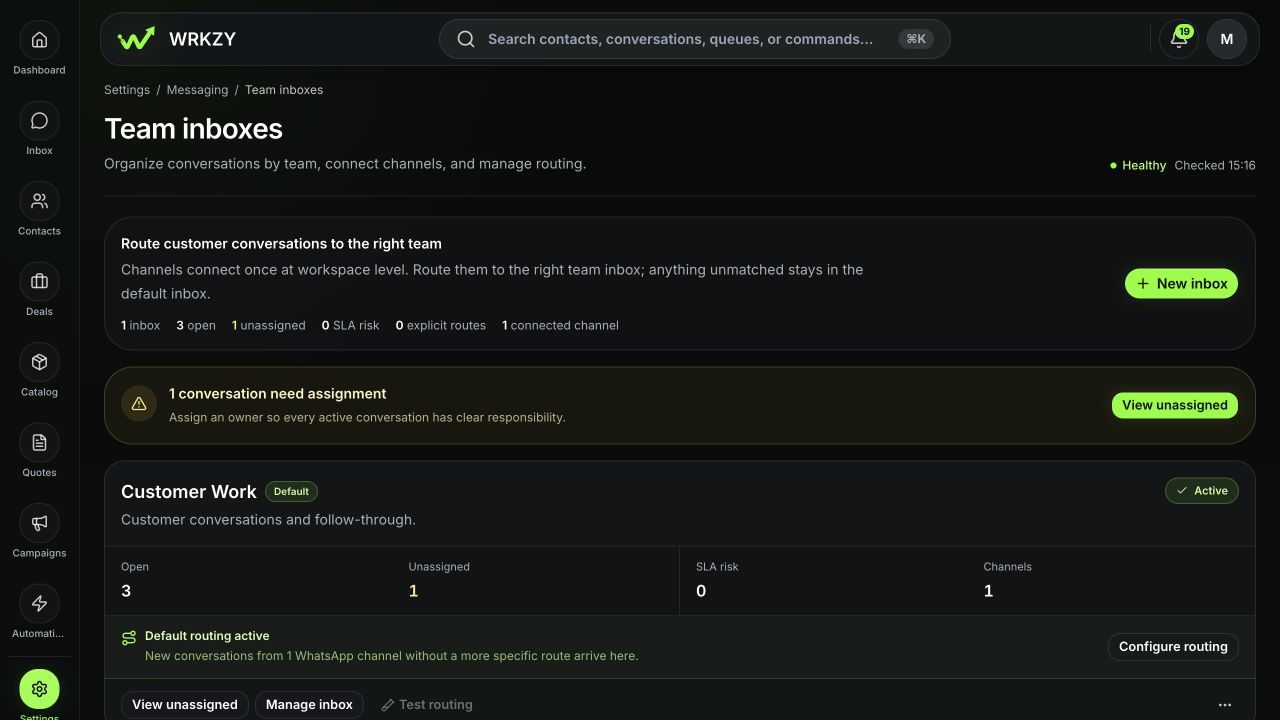
- Open Settings → Messaging → Team inboxes.
- Select the team that owns this address.
- Attach the email connection or create its route.
- Confirm members and default/fallback behavior.
- Send a new inbound message and verify it lands in the selected inbox, not just All Work.
 Open full size
Validate a real reply
- Open the new test conversation in Work.
- Confirm customer/test identity and the shared sender.
- Assign the conversation.
- Reply with a harmless unique phrase.
- Confirm Sending → Sent and any provider-reported Delivered event.
- Confirm receipt in the test mailbox and inspect the From/Reply-To behavior.
- Check Settings → Delivery for connection health and failed or queued items.
Email submission and provider evidence
- 01LocalPrepared
Content and recipient are ready but nothing has left WRKZY.
- 02PendingSubmitted
WRKZY handed the request to the connected provider.
- 03AcceptedProvider accepted
The provider accepted processing, not necessarily delivery.
- 04ResultDelivered or failed
A terminal provider event confirms delivery or an exception.
- 05RecoverException reviewed
An owner diagnoses, recovers safely, or escalates with evidence.
Historical import
Where the connected OAuth provider and UI offer historical import, choose a deliberate start date and import only after the live receiving and sending path is proven. Historical messages can create significant context and triage volume; agree how the team will distinguish old mail from new customer work.
Common failures
- Receiving works, sending not ready: complete direct Microsoft, Google, or SMTP setup; do not promise the shared From identity yet.
- Sending works, receiving missing: inspect the receiving connection/forwarding/sync path and inbound triage.
- OAuth connects but send test fails: confirm the signed-in provider account is allowed to send as the shared address.
- SMTP test fails: verify host, port, security mode, username, and app-password requirements with the provider; do not paste the password into Support.
- Mail reaches Other/Quarantine: review inbound triage and classification before promoting it.
- Wrong team receives it: correct the team-inbox route.
- A test may have sent: inspect provider events before sending again.
Measurable readiness
Measure inbound routing accuracy, replies sent from the correct identity, delivery failure rate, unassigned age, and recovery time. The connection is ready only when the team can receive, own, reply, and verify.
- Company-owned address confirmed
- Receiving path tested
- Direct sender connected
- Test arrived from exact identity
- Team-inbox route verified
- Reply appears in same operating context
- Delivery events reviewed
- Provider secrets kept out of evidence