
- An active organization membership
- A durable business, access, or data-boundary reason for a new workspace
- Owner/Admin approval for workspace creation or configuration
- A recognizable name, slug, timezone, currency, and initial owner
Organization and workspace are different scopes
An organization is the account-level membership boundary. A workspace is where customer records, channels, queues, settings, and day-to-day work are scoped. A person may belong to the organization but not every workspace. Always read the active workspace name and URL before changing configuration.
Scope and access
- 01AccountOrganization
The customer account and ownership boundary.
- 02ScopeWorkspace
The operating area where customer work and configuration live.
- 03GovernOwner
Controls the organization, subscription, and highest-risk access.
- 04ConfigureAdministrator
Configures members, channels, defaults, and operating controls.
- 05OperateMember
Works customer queues, records outcomes, and escalates exceptions.
Switch workspaces safely
Use the workspace switcher in the application header. After switching, confirm the URL contains the intended workspace slug and reopen the record or settings domain. Do not keep two tabs from different workspaces open while performing repetitive administration unless each tab's scope is unmistakable.
Create a workspace
Only an organization Owner or Admin can create a workspace, and the organization must have available workspace capacity in its current plan.
- Select your profile avatar in the top-right corner to open the account menu.
- Under Current workspace, choose Create workspace.
- Enter a distinct, durable workspace name based on the operating boundary—not a temporary project status.
- Select Create. WRKZY creates the workspace, makes you its Owner, switches to it, and opens its Workspace & members settings.
- Configure members, business defaults, channels, routing, privacy, and billing readiness before importing customer data.
- Run the launch-readiness checks with a controlled record.
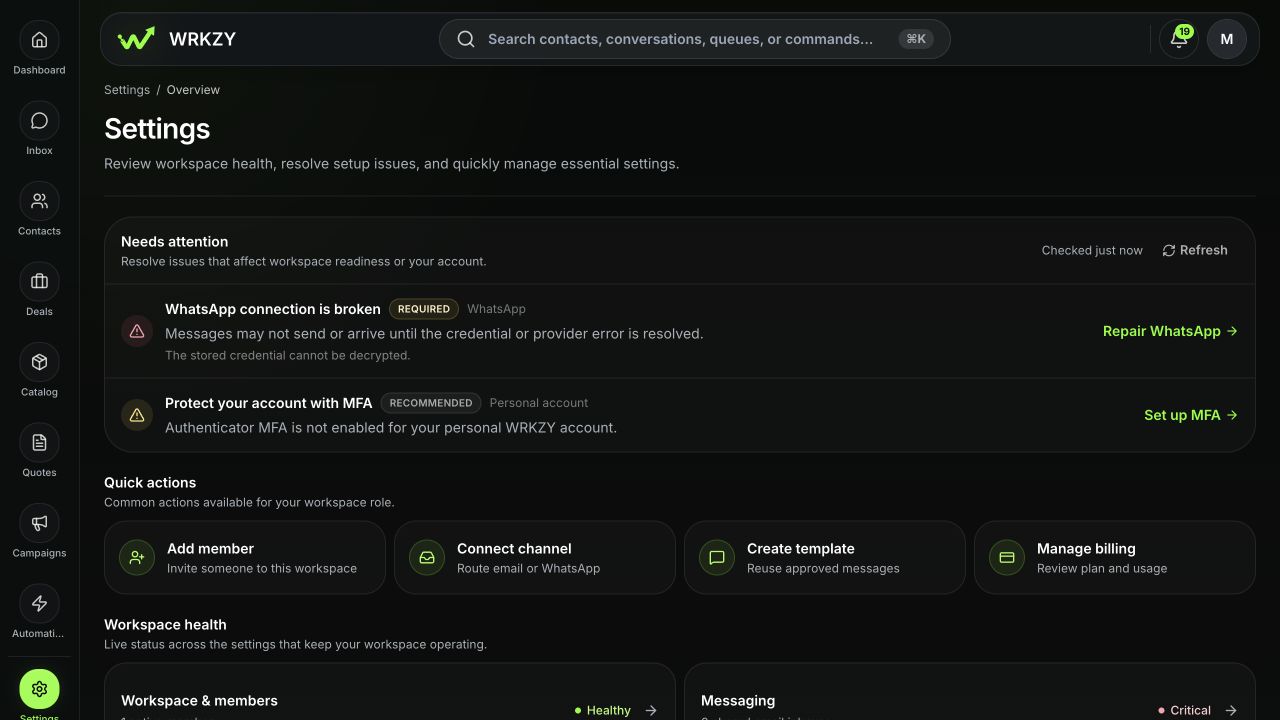
You can also open Settings → Workspace & members, open More workspace actions beside the workspace name, and choose Create workspace. If Create workspace is not visible, verify your organization role and workspace capacity rather than looking under Members.
A new workspace is not automatically a copy of the current one's channels, members, templates, or policies.
Rename a workspace
- Open Settings → Workspace & members and select Rename beside the current workspace name.
- Enter the new name and select Save.
- WRKZY updates the workspace URL and redirects automatically.
- Update bookmarks, operating notes, contextual Help mappings, and any external documentation that used the old slug.
- Verify members and records still resolve in the renamed workspace.
 Open full size
When to create another workspace
Create a separate workspace when access, data ownership, channels, reporting, or compliance boundaries truly differ. Do not create one merely to represent a team-inbox queue, sales stage, campaign, or temporary initiative; those have native structures inside a workspace.
Recovery
If you land in the wrong scope, stop before changing data. Record both slugs, switch to the intended workspace, and verify the action was not already saved elsewhere. If a rename broke a bookmark, use the workspace switcher to resolve the current slug. Do not create a replacement workspace to recover a naming or access issue.
- Organization and workspace boundary understood
- Active name and slug confirmed before changes
- New workspace has a real access or data purpose
- Rename redirect and bookmarks verified
- Channels, members, privacy, and defaults reviewed before launch