
- Access to the intended workspace and its member list
- Knowledge of the responsibilities each person must perform
- An Owner/Admin available for access changes and exceptions
Role model in the product
Settings displays three workspace roles:
| Role | Product description | Typical responsibility |
|---|---|---|
| Owner | Full workspace control | Final accountability for access, ownership transfer, security audit, and high-risk administration |
| Admin | Can manage members and workspace settings | Operate configuration and manage Members without controlling the Owner |
| Member | Can work in assigned inboxes and CRM records | Handle customer work, follow-ups, records, and permitted workflow tasks |
Member is the customer-facing access role in WRKZY. “Operator” describes day-to-day customer work, not a separate permission level. Organization membership is a separate scope: a person may belong to the organization but still require membership in a particular workspace.
Role and scope hierarchy
- 01AccountOrganization
The customer account and ownership boundary.
- 02ScopeWorkspace
The operating area where customer work and configuration live.
- 03GovernOwner
Controls the organization, subscription, and highest-risk access.
- 04ConfigureAdministrator
Configures members, channels, defaults, and operating controls.
- 05OperateMember
Works customer queues, records outcomes, and escalates exceptions.
Important boundaries verified in WRKZY
- An Owner can invite Members or Admins and transfer ownership to another active member.
- An Admin can invite and manage Members, but cannot promote someone to Admin, manage another Admin, or change the Owner.
- A user cannot change their own workspace membership through member administration.
- Only the Owner can open full-IP authentication Session logs.
- Owners and Admins manage channel connections, shared workspace templates, AI controls, business defaults, and other administrative domains.
- Team-inbox roles—Manager, Member, and Viewer—are separate from workspace roles and control queue-level visibility and responsibility.
- Automation approval and lifecycle controls have their own release rules; Member editors request approval when required.
Choose a role from tasks
- List the recurring tasks the person must perform.
- Grant Member if the tasks are customer/CRM work inside assigned boundaries.
- Grant Admin only if they must change workspace settings or manage Members.
- Keep Owner singular and accountable; transfer it only through a planned handover.
- Configure restricted team-inbox membership after the workspace role.
- Test access with the person and remove unnecessary elevation.
A missing button can result from the wrong workspace, restricted inbox, unavailable feature state, or owner-only control. Do not promote someone to Admin until the actual boundary is identified.
Access-review questions
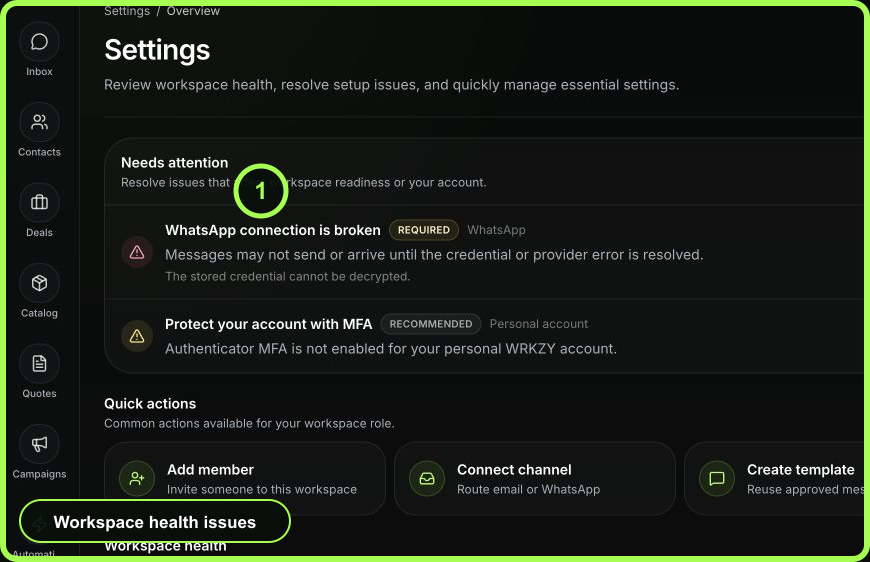
Can each Admin name the settings they own? Does every restricted inbox have current members? Are disabled users still owners of active work? Does the Owner use MFA and review sessions? Is a service process depending on one person's private mailbox? Are automation approvers still appropriate?
 Open full size
Offboarding and role changes
Before disabling or demoting a user, reassign conversations, deals, tasks, follow-ups, inbox roles, automation ownership, approval requests, and channel responsibility. Transfer ownership before the current Owner leaves. Then review sessions and administrative change history.
Recovery
If access is too broad, reduce it only after preserving business ownership. If access is too narrow, identify the exact task and grant the narrow workspace or inbox permission. For suspected unauthorized elevation, preserve actor, target, old/new role, time, and change-history evidence; the Owner can review authentication audit. Never share passwords or session tokens.
- Tasks mapped before role selected
- Member used as the default
- Admin duties are explicit and current
- Owner handover and MFA are ready
- Restricted inbox access tested separately
- Open work reassigned before access removal