
- Owner or Admin access to business settings
- Approved reporting timezone and default operating currency
- A list of existing deals, quotes, reports, and schedules affected by the change
- A test record for verifying display and due-time behavior
What these defaults change
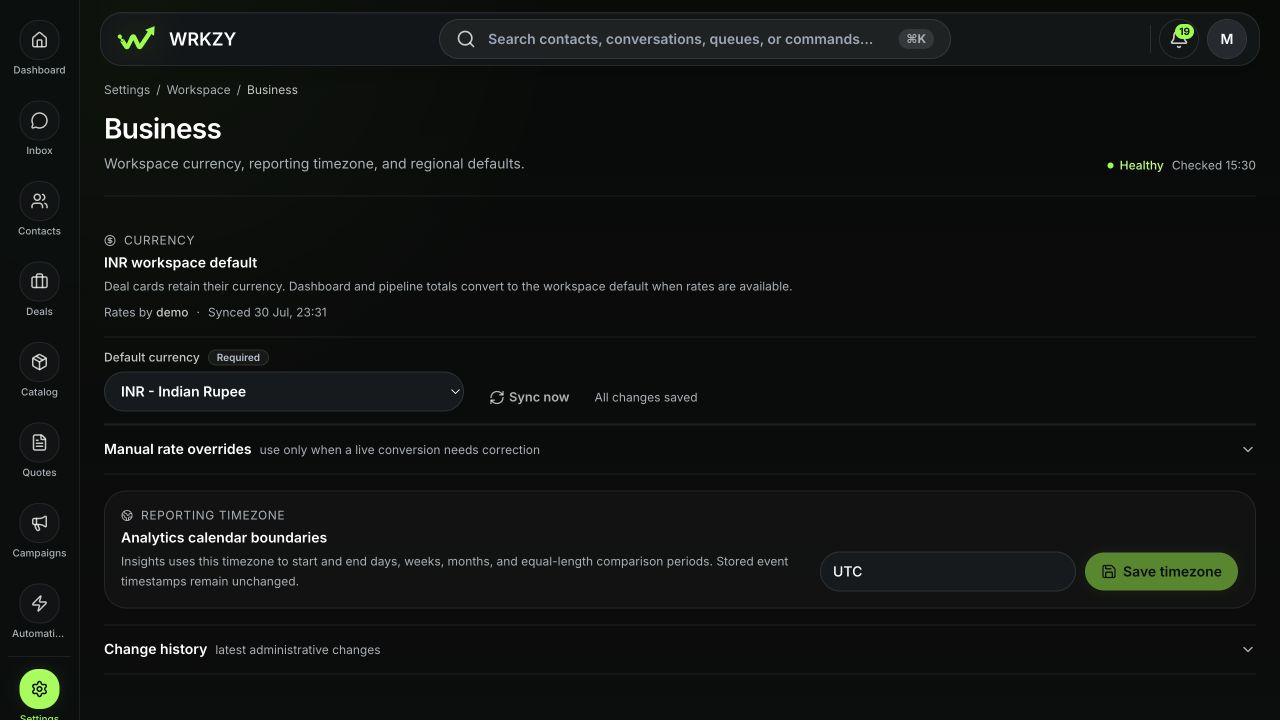
Open Settings → Business. The default currency is the reporting currency for dashboard and pipeline totals when conversion rates are available. Existing deal cards retain their own currencies. The reporting timezone controls where Insights starts and ends days, weeks, months, and equal-length comparison periods; stored event timestamps do not change.
These settings affect interpretation across the workspace. Agree them with finance and operations before changing an established workspace.
| Setting | Controls | Does not rewrite |
|---|---|---|
| Default currency | Converted dashboard and pipeline totals; quote and reporting context that uses the workspace default | The currency stored on existing deal cards |
| Conversion rates | How supported currencies convert into the saved default | Original commercial values |
| Reporting timezone | Analytics calendar boundaries and comparison periods | Stored event timestamps or a teammate's device timezone |
Set the currency
- Open the intended workspace and go to Settings → Business.
- Under Currency, select Default currency.
- Save the choice before trying to synchronize live rates.
- Select Sync now to refresh cached conversion rates.
- If a live rate needs a documented correction, expand Manual rate overrides, enter only positive rates, and save.
- Confirm the header shows the saved default, rate source, and synchronization time.
Live-sync failure keeps existing cached rates. Do not replace valid rates with zero or guess a value; document the approved source and effective time for a manual override.
Set the reporting timezone
- Under Reporting timezone, enter an IANA timezone such as Asia/Kolkata.
- Confirm it represents the team's reporting calendar—not merely the administrator's current location.
- Select Save timezone.
- Open Insights and compare a known date boundary to the chosen timezone.
 Open full size
Change-control questions
Before changing an existing default, decide which reports will appear different, whether revenue owners use mixed deal currencies, when stakeholders should expect the new boundary, and who will validate the next reporting period. A timezone change can move events between reporting days even though their stored timestamps remain the same.
Verify the result
- Reopen Business settings and confirm the saved currency and timezone.
- Check the most recent rate synchronization status and any recorded error.
- Compare one mixed-currency total with the expected conversion.
- Confirm Insights day boundaries align with the operating calendar.
- Notify report consumers of the effective change.
Recovery
If totals look wrong, do not edit deal currencies in bulk. Check the saved default, rate timestamp, manual override, and whether the source deals have supported currencies. If reporting periods moved unexpectedly, restore the previous timezone and record both change times. Escalate with workspace slug, old and new values, rate source/time, affected report, and a redacted example.
- Finance-approved default currency saved
- Live-rate status or manual source recorded
- Reporting timezone uses an IANA value
- Known total and date boundary checked
- Stakeholders know the effective change time