
- Owner or Admin approval for the company-owned WhatsApp sender
- Meta business administration access and the correct connection mode
- A destination team inbox and default-sender decision
- An approved external test number
Sender connection versus message delivery
Open Settings → WhatsApp. A sender can be configured while provider reachability, template availability, routing, or delivery still needs attention. Treat sender identity, default routing, history sync, and delivery outcomes as separate checks.
Governed WhatsApp path
- 01GateCustomer permission
Confirm consent and recipient eligibility for the intended message.
- 02IdentityApproved sender
Use the connected business identity and its provider rules.
- 03DecisionSession or template
Choose content allowed for the current conversation window.
- 04EvidenceProvider delivery
Submitted is not delivered; read the provider-backed state.
- 05OutcomeReply and follow-through
Route the response or exception to an accountable owner.
Connect a sender
- Select Add WhatsApp sender or Connect your first sender.
- Use Meta Embedded Signup when Add WhatsApp sender offers that option.
- Complete the Meta flow and select the intended WhatsApp Business Account and phone number.
- Return to WRKZY and confirm the new row under WhatsApp senders.
- Open sender details and record the connection type, outbound routing state, history sync state, phone number ID, and business account ID in the authorized operations record.
- If this should be the normal outbound identity, set it as the default outbound number.
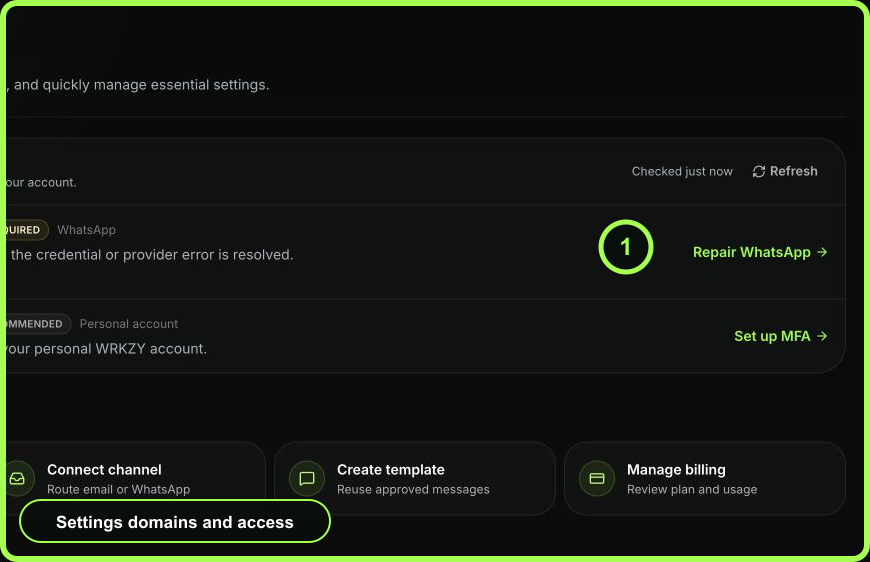
- Open Connection diagnostics and confirm provider reachability and setup state.
If WRKZY says Embedded Signup is unavailable or not configured, stop and preserve the exact message. Contact WRKZY Support without sharing Meta credentials; repeatedly restarting the connection will not make the option available.
Route and synchronize deliberately
Link each sender to the correct team inbox in Settings → Team inboxes and run a routing preview. Before history sync, decide the business purpose, start range, and data owner. Confirm synchronized history lands in the expected workspace and does not violate consent or retention policy.
Verify real operation
- From an authorized test contact with recorded WhatsApp consent, send an inbound message to the connected number.
- Confirm it reaches the expected team inbox and owner.
- Reply within the permitted session or use an approved template as required.
- Open Settings → Message delivery → WhatsApp.
- Verify sent, delivered, read, or failed status and inspect sender quality and unavailable templates.
 Open full size
Remove or change a sender
Changing the default affects future outbound routing. Confirm campaigns, automations, templates, and team-inbox routes that depend on the old sender first. Removing a number is a consequential configuration action; preserve its IDs and confirm another approved path exists.
Recovery
For a connection failure, inspect setup mode, provider reachability, sender state, and diagnostics. For a delivery failure, use Message delivery and the provider reason; do not repeatedly reconnect a healthy sender. Preserve workspace slug, sender label, phone-number ID, business-account ID, approximate time, diagnostic state, and redacted error. Never share access tokens, verification codes, or private keys.
- Sender identity and business account verified
- Default outbound route chosen deliberately
- Team-inbox routing tested
- History-sync scope approved
- Consent-aware inbound and outbound test passed
- Delivery and quality signals reviewed