
- Owner or Admin access to quote settings
- Approved business identity, logo, contact, and legal text
- An agreed numbering convention and next-number ownership
- A draft test quote for PDF and buyer-page verification
Configure buyer-facing identity
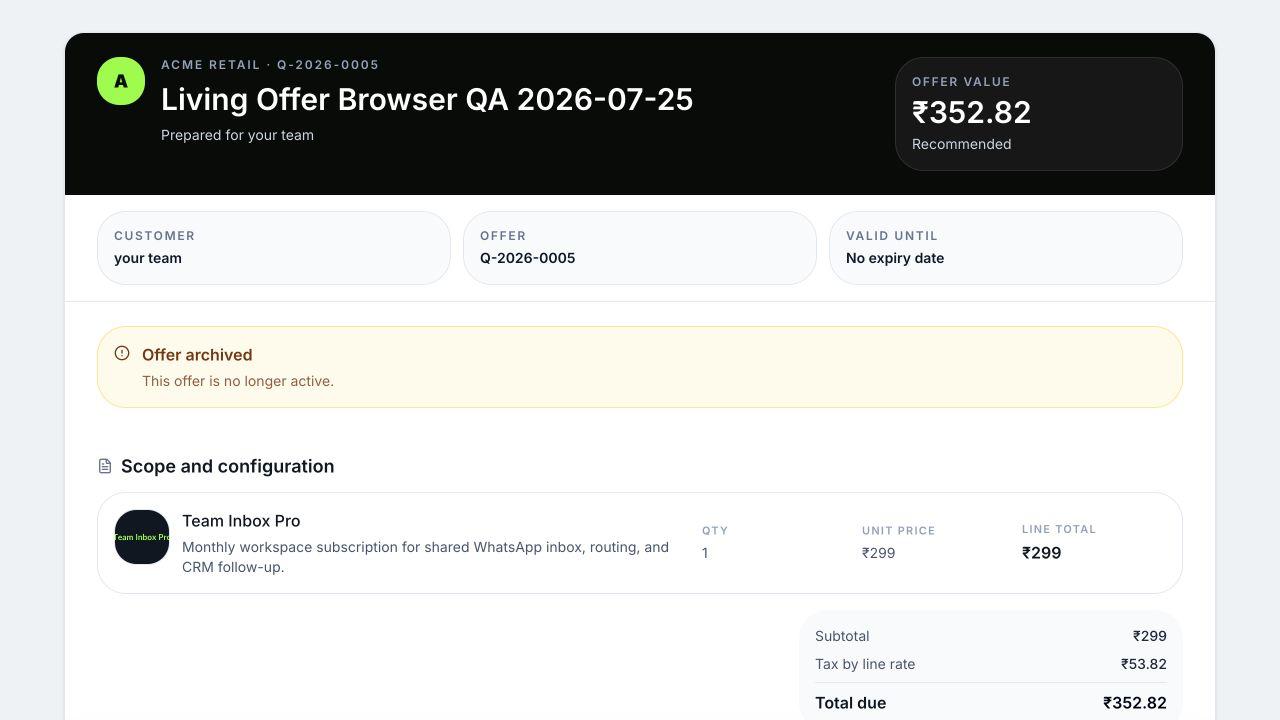
Open Settings → Quotes. In Quote branding, set the customer-facing brand name, approved logo, accent color, email, phone, website, and address. Preview how the identity will appear on the secure buyer page and generated PDF.
Use a brand name the buyer will recognize and contact details that reach the team responsible for the offer. Upload only an authorized logo asset; do not use a temporary file or a private storage URL that will expire.
 Open full size
Configure date display
Choose the workspace quote date format that your buyers and team can interpret consistently. Dates are stored as actual date values; display format controls presentation. Review validity and issue dates in the preview after changing the setting.
Configure numbering
Quote numbering supports a prefix, optional year, sequence padding, optional yearly reset, and the next sequence. WRKZY previews the next number before you save.
| Setting | Example decision |
|---|---|
| Prefix | Use a short stable identifier such as Q or PROP |
| Include year | Helps distinguish annual sequences |
| Padding | Produces sortable identifiers such as 0007 |
| Reset yearly | Restart the sequence each year when policy requires it |
| Next sequence | Continue from a migrated or external numbering run |
- Confirm the current highest issued quote number.
- Choose the format and inspect the next-number preview.
- If migrating, set the next sequence above every number already used in the applicable scope.
- Save once, then create a clearly marked internal draft and verify the assigned number.
Understand the effect on existing quotes
Numbering changes govern newly assigned identifiers and do not renumber an issued quote. Branding is workspace-level: a current secure buyer page or a newly regenerated PDF can use the latest applicable workspace brand details alongside the quote’s saved design and commercial content. Review active buyer links before a rebrand, and retain already delivered artifacts according to your records policy when the exact earlier rendering matters.
Neither setting is a reason to edit a sent offer. Use a revision for changed scope, price, validity, or terms.
Governance
Record who approved branding and numbering. Avoid changing the prefix during an active reporting period unless downstream finance and sales processes are prepared. Never reuse a voided or deleted identifier to make the sequence look continuous.
Troubleshoot
If a logo fails, verify file type, size, and durable URL. If the next number is unexpected, compare prefix, year, reset policy, padding, and the highest committed sequence—not merely the latest visible draft. Preserve the draft identifier and workspace when escalating a collision concern.
- Brand name and logo are authorized
- Buyer contact details tested
- Date format is unambiguous
- Next number is above existing issued identifiers
- Test draft preview and PDF inspected
- Change owner and approval recorded