
- Access to the relevant conversation or commercial record
- A named owner and a specific future action
- Your team's timezone and due-work policy
Next action versus SLA
Use Next for the operator's follow-up: call the buyer tomorrow, check inventory later today, or review the promised document next business day. Use SLA for the customer response deadline. They can coexist.
Example: a customer message has an SLA in four hours, but the customer then promises to send a document tomorrow. After the current response is complete, set Pending with a Next action tomorrow; do not keep today's SLA as a false overdue signal.
Create a useful follow-up
- Open the source conversation from My Work, a notification, or the Work inbox.
- Confirm the customer, current owner, status, and latest message.
- Decide the exact next action. “Follow up” is not specific enough; use “Send revised quote after finance approval.”
- Assign the conversation to the person who will perform it.
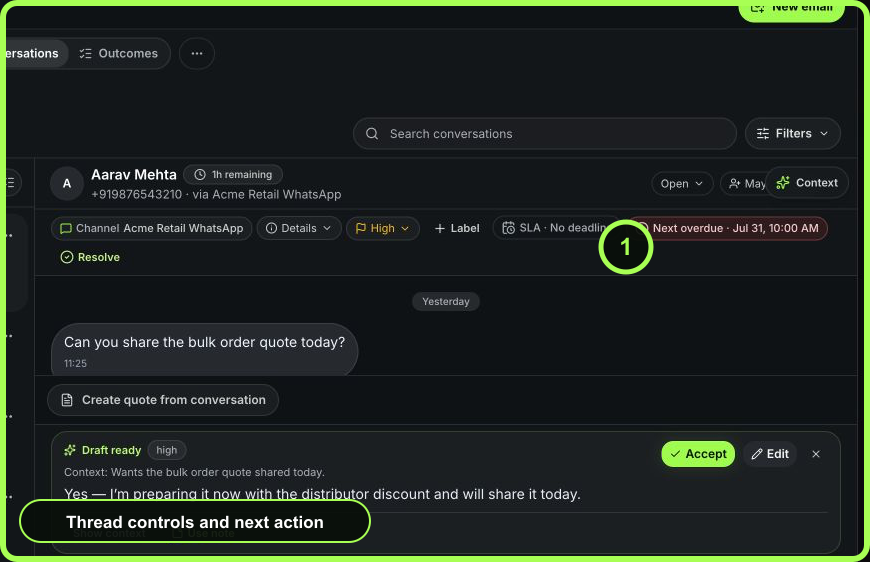
- Select Next in the conversation workflow bar.
- Choose Later today, Tomorrow 9 AM, Next business day, or enter the appropriate date and time.
- If waiting, set Pending only after the future action is visible.
- Add a concise internal note when the reason or dependency is not already clear from the thread.
- Reopen or refresh the conversation and confirm the Next time, owner, and status were saved.
 Open full size
Work the Follow-ups queue
The /follow-ups path opens Inbox → Work with the Follow-ups queue selected.
- Start with overdue items, then due today, then upcoming work.
- Open one conversation and read what changed since the follow-up was created.
- Complete the promised action or change the plan based on new evidence.
- If a customer reply superseded the reminder, record the new action rather than executing stale instructions.
- Set a new date only when there is a real dependency and named next action.
- Resolve the conversation only when the customer outcome and any accountable linked outcomes are complete.
Write follow-ups another person can execute
Use the pattern Action + trigger/context + owner + time.
- Good: “Nisha to resend quote v3 after buyer confirms GST details; tomorrow 09:00.”
- Weak: “Check later.”
- Good: “Aarav to confirm replacement dispatch with operations; today 16:00.”
- Weak: “Pending ops.”
If the work belongs in a deal, quote, or accountable outcome, update that record as well. Do not let the conversation reminder become the only evidence of a commercial promise.
Use the dashboard for due-work risk
My Work and Priority Queue can surface follow-up, quote, deal, and SLA commitments. Open the source record from the ranked item. The dashboard's appearance is not proof that your follow-up is complete; completion changes the underlying record.
A due-work signal is the start of the decision
- 01ScopeChoose the decision view
Use My Work, Team, Revenue, or Insights for the question and responsibility you are reviewing.
- 02SignalRead the signal and its coverage
Treat counts, urgency, trends, and empty states as attention cues—not conclusions.
- 03VerifyOpen the source record
Confirm the customer, current state, evidence, owner, and timing where the work lives.
- 04ActDecide and assign the next action
Complete, delegate, or schedule one specific outcome with a responsible person.
- 05OutcomeVerify the operating result
Check the source record first, then confirm that the queue or summary reflects the change.
Edge cases and recovery
- The follow-up is missing: confirm the owner, Next time, and workspace, then check that the conversation is not closed or filtered out.
- The reminder appears at an unexpected time: verify the workspace/reporting timezone and the exact saved timestamp.
- The owner is unavailable: reassign deliberately and update the note; do not leave the old owner as a silent dependency.
- A customer replied early: reopen the record, evaluate the new message, and clear or replace the stale next action.
- The action failed: preserve the failure or delivery state before changing the date. A new reminder should not hide a send problem.
- The customer outcome is complete: resolve with the appropriate outcome so it does not continue to consume queue attention.
Measurable follow-through
Monitor the share of active commitments with an owner and date, on-time completion of due follow-ups, overdue age, and repeated reschedules. A low overdue count achieved by continually moving dates is not successful follow-through.
- Specific next action written
- One accountable owner
- Date and timezone appropriate
- Pending state reflects a real dependency
- Source record updated
- Delivery or completion evidence verified
- Reschedule reason is visible