
- Access to the team inbox and relevant connected channel
- A conversation your role allows you to manage
- The team's rules for ownership, priority, SLA, and resolution
Before you enter the queue
Confirm the workspace, the team inboxes you are responsible for, and the team's definitions for high/urgent priority, SLA, Pending, and resolution outcomes. Without shared definitions, operators can make the interface look tidy while customer promises remain ambiguous.
1. Choose the queue by risk
Start with the narrowest view that answers your operating question:
- SLA Risk for near or overdue response commitments;
- Needs reply for customer response work;
- Unassigned for conversations without a person accountable;
- My Work for your owned queue; and
- Follow-ups for scheduled next actions.
Choose the team inbox and channel scope before searching. Counts and results reflect that scope.
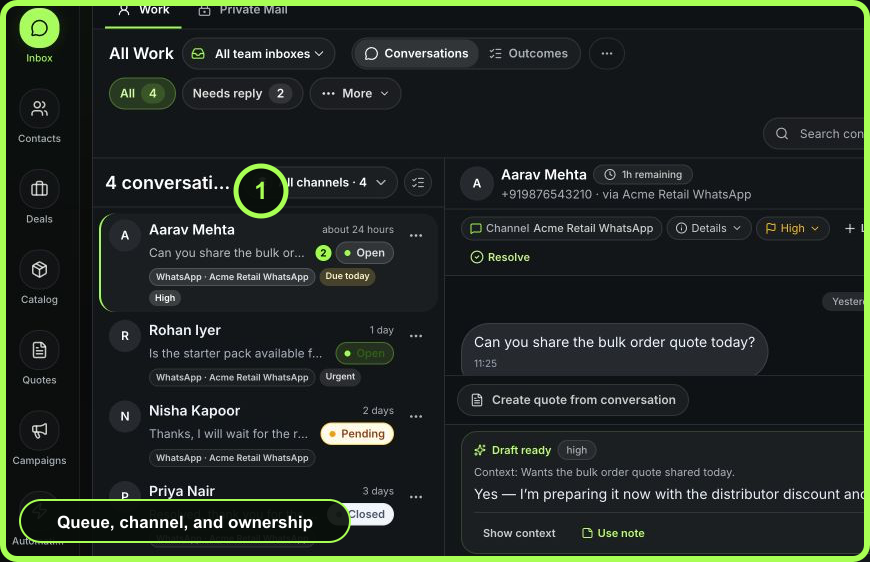 Open full size
2. Verify the conversation
Open one item and confirm:
- customer name and a second identifier such as phone, email, or company;
- connected channel and sender identity;
- team inbox and current owner;
- latest inbound message and any quoted context;
- status, priority, SLA, and Next time; and
- related contact, deal, quote, campaign, or recent activity relevant to the decision.
If identity is uncertain, stop and improve or merge customer context before sending sensitive information.
3. Claim responsibility
If the item is unassigned and within your responsibility, choose Assign to me. If another person owns the decision, assign it to that teammate and add the minimum explanation. Avoid “shared ownership”; one person should be accountable even when several people contribute.
4. Decide the next customer state
Use this decision sequence:
- Is a customer response required now? If yes, reply before changing the item to Pending.
- Is the issue urgent or high impact? Set priority using the team's policy.
- Is there a response commitment? Confirm or set SLA.
- Will work continue later? Set a specific Next action and owner.
- Is there a commercial or operational record that should carry the commitment? Update or create the deal, quote, or outcome rather than leaving it only in a note.
5. Reply deliberately
Read the full current exchange, select the intended sender, and use a template or attachment only after reviewing its customer, variables, and relevance. AI output remains a suggestion until you verify and send it. Select Send once, then inspect status instead of clicking repeatedly.
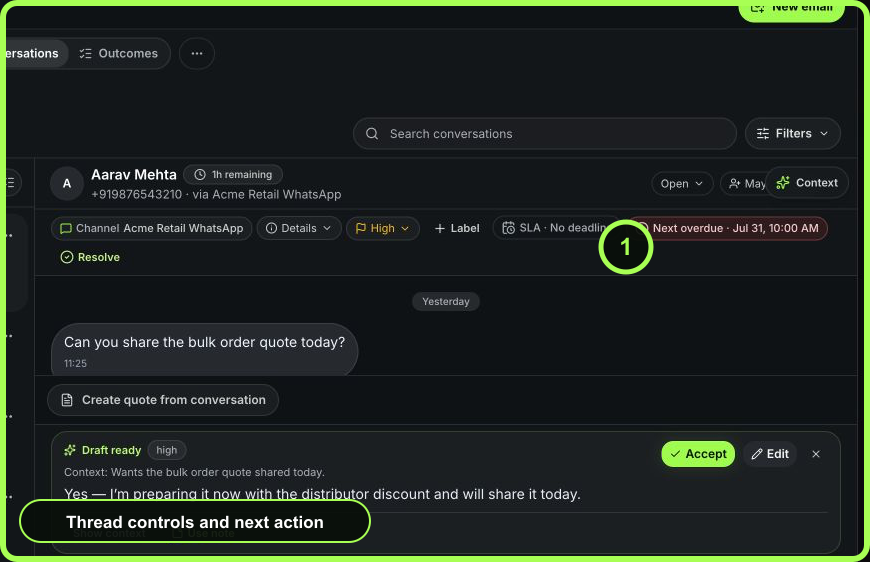 Open full size
6. Verify delivery and follow-through
For an outbound message, distinguish Sending, Sent, Delivered, Read, and Failed. Email can additionally expose provider events such as Delayed, Bounced, Complaint, Opened, or Clicked. “Sent” is not the same as customer receipt.
If another action is due, set Next and use Pending. If the work is complete, choose Resolve, select the correct outcome, and add a resolution note only when it explains a decision or exception.
7. Confirm the handoff
Refresh or reopen the conversation. Verify:
- the intended owner;
- the latest outbound delivery evidence;
- open, pending, or closed state;
- SLA and Next time where applicable;
- resolution outcome if closed; and
- related record or internal context needed by the next operator.
Example: availability request becomes a quote
A customer asks on WhatsApp whether a starter pack is available. The operator verifies the customer and channel, assigns the thread, marks it high priority because delivery timing matters, and confirms inventory. The request becomes commercial, so the operator creates a quote from the conversation, replies with the approved offer, verifies delivery, and sets a Next action for buyer follow-up. The conversation remains Pending until the buyer responds; the quote carries the commercial history.
Recovery rules
- Do not resend until the first delivery attempt is understood.
- Do not close a conversation to remove it from a queue.
- Do not use an internal note for content the customer must receive.
- Do not leave a Pending conversation without an explicit future action.
- When a concurrent change is skipped, refresh and reconcile the latest state before trying again.
Measurable result
Track first-owner time, unassigned active work, SLA performance, verified reply delivery, on-time next actions, and resolution quality. The target is fewer customer commitments lost between people, not simply more replies per operator.
- Queue and team scope correct
- Customer and sender verified
- One owner visible
- Priority and timing follow policy
- Reply reviewed and delivery checked
- Related commitment recorded in its source record
- Pending or resolution state truthful