
- Access to every conversation in the intended selection
- A narrow filter that describes one valid cohort
- Authority to assign, reprioritize, pend, snooze, or resolve that cohort
Available bulk changes
- Assign
- Set one authorized owner for all selected conversations, including Assign to me
- Unassign
- Return selected conversations to an unassigned queue
- Pending
- Change selected conversations to Pending and clear the existing Next action
- Snooze
- Set Pending until tomorrow morning and pause SLA through the recorded bulk action
- Priority
- Set Low, Normal, High, or Urgent on the selected records
- Resolve
- Choose one resolution outcome and optional note for the selected conversations
These actions do not send messages. They change workflow state and can affect what teammates see in queues and dashboard signals.
Build a safe cohort
- State the rule in one sentence, for example: “Unassigned normal-priority conversations in Customer Work that were already reviewed by the triage lead.”
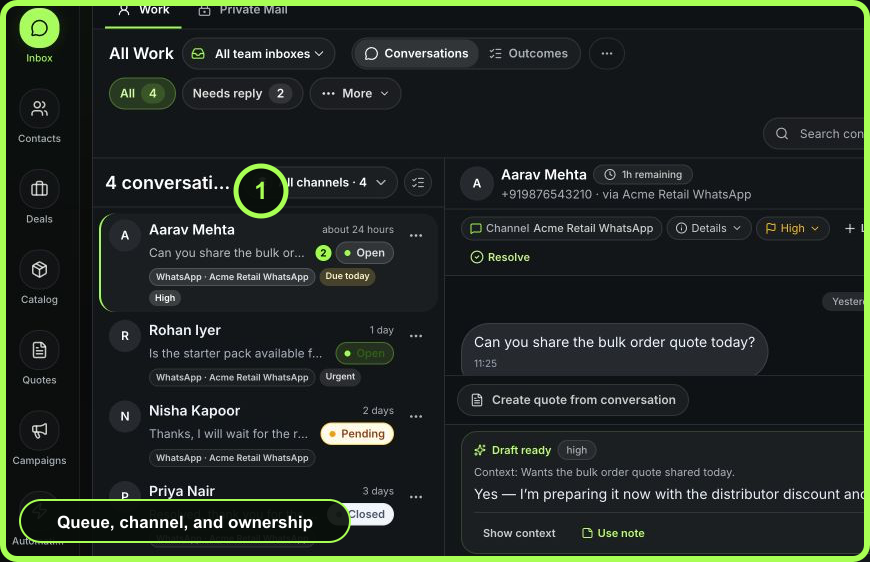
- Select the team inbox, queue, channel, status, owner, date, and unread filters needed to express the rule.
- Review the result count.
- Open records from the beginning, middle, and end of the visible set.
- Remove exceptions whose customer state, owner, timing, or outcome differs.
- Enter selection mode and select the intended conversations.
- Read the N selected count before choosing an action.
 Open full size
Bulk assign or unassign
- Choose Assign.
- Select yourself or the teammate who has accepted this workload. Availability can be shown beside teammates, but it is not a substitute for responsibility or skill.
- Confirm the success summary.
- Open several updated records and verify the assignee and queue placement.
Use Unassign only when a staffed triage process will claim the work. Never bulk-unassign to hide workload from an individual view.
Bulk pending or snooze
Pending marks the selection as waiting and clears the existing Next action in the bulk command path. Use it only if the same waiting condition applies to every selected record, then set individual follow-ups where needed.
Snooze moves each selected conversation to Pending until tomorrow morning and pauses SLA. This is consequential: do not snooze active customer-response commitments merely to reduce an overdue count. Confirm team policy and review timezone behavior.
For varied future dates or reasons, update records individually instead.
Bulk priority
- Verify the selected records share the same impact and urgency rule.
- Choose Priority and the intended level.
- Review high-priority and SLA views afterward.
Priority inflation makes every item less distinguishable. A campaign response cohort, for example, should not automatically become Urgent because it is large.
Bulk resolve
- Confirm each selected conversation is genuinely complete.
- Choose Resolve.
- Select the single outcome that truthfully applies to every item.
- Add a note only when one shared explanation is accurate and appropriate for all selected records.
- Confirm Resolve selected.
- Sample the updated records and verify closed state, outcome, owner history, and no open accountable outcome remains.
If outcomes differ, separate the cohort before resolving.
Interpret partial results
WRKZY can report that some conversations updated while others were skipped, including conflicts when a record changed elsewhere.
- Record the succeeded, failed, and conflict counts.
- Refresh the queue.
- Locate the records that remain in the prior state.
- Open each failed/conflicting record and inspect its current owner, status, and recent history.
- Decide individually whether the original bulk rule still applies.
Do not immediately repeat the whole selection; that can overwrite valid concurrent work or apply the action twice to records that already succeeded.
Recovery
- Wrong assignee: reassign only the affected records and notify the correct owner.
- Wrong priority: restore using the actual decision rule; inspect downstream views.
- Wrong Pending/Snooze: reopen active work and restore valid SLA/Next commitments.
- Wrong resolution: reopen each affected conversation, correct the outcome/context, and assess any missed customer work.
- Unexpected large selection: clear selection immediately and rebuild the filter from an empty state.
Measurable value
Bulk actions should reduce repetitive administration without increasing reopened conversations, misassignment, stale Pending work, or manual corrections. Review the correction rate after every large operation.
- One decision rule describes all records
- Representative records reviewed
- Selection count confirmed
- Exceptions removed
- Action and timing effect understood
- Success and conflict summary recorded
- Post-change sample verified