
- Access to the conversation and relevant customer records
- An approved label vocabulary or authority to create a label
- A legitimate team need for any internal context recorded
Choose the right context mechanism
| Need | Use | Do not use |
|---|---|---|
| Explain a decision or exception on this thread | Internal note | Customer reply or a vague status change |
| Classify conversations consistently | Label | Free-text note repeated on every thread |
| Store durable customer identity or attribute | Contact/company field or tag | Conversation label |
| Record commercial commitment | Deal, quote, task, or outcome | Internal note as the only source |
| Schedule work | Next action or SLA | A note saying “follow up” |
Add a useful internal note
- Open the conversation and read the latest customer and team activity.
- Decide whether the information is already visible in the thread or linked record. If it is, do not duplicate it.
- Open the internal-note control.
- Write the decision, reason, dependency, or handoff in plain language.
- Include an owner and time only if the corresponding assignment or Next field is also set.
- Save and confirm the note appears in the conversation's internal context.
Good note: “Finance approved a maximum 10% discount for quote v3; Nisha owns buyer follow-up tomorrow 09:00.”
Weak note: “Spoke to customer, please check.”
Internal notes can be edited, but changes should improve accuracy rather than erase inconvenient history.
Apply an existing label
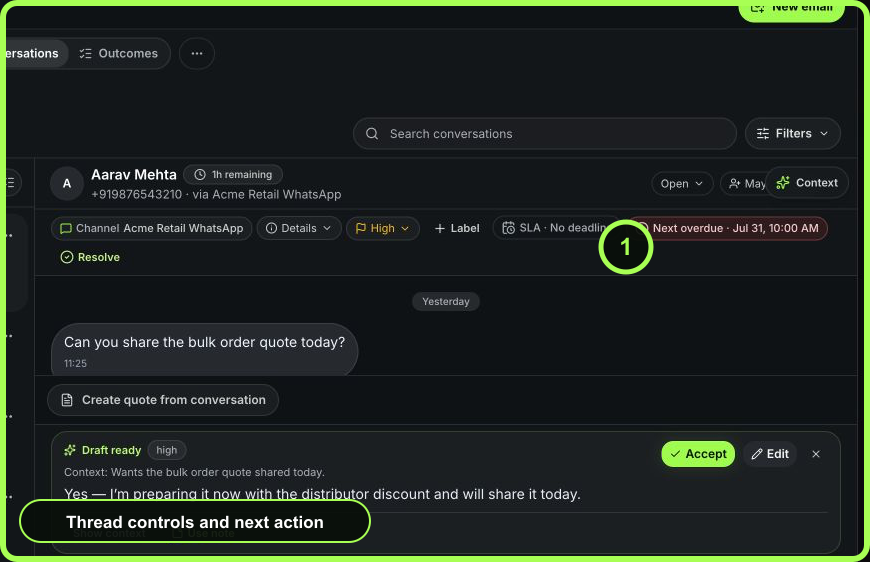
- Select Label in the workflow bar.
- Review the available labels and their meaning.
- Apply only labels supported by current conversation evidence.
- Remove labels that no longer describe the conversation when policy requires current-state classification.
- Confirm the label is visible in the thread context and any intended saved view.
 Open full size
Create a label only when it will be reused
The conversation label control can create a named, colored label. Before creating one, search for an equivalent label and ask:
- Does it describe a stable classification or routing need?
- Will multiple people use the same definition?
- Is a CRM tag or custom field a better durable location?
- Who will remove or archive obsolete labels?
Avoid synonyms such as “VIP,” “High value,” and “Priority customer” unless the organization has intentionally distinct definitions.
Connect customer context
Use the context rail or Contact 360 to verify identity and relationship. Add or correct durable context on the contact/company record, including relevant tags or custom fields. Link commercial work to the deal or quote. The conversation should carry transient operating state; CRM should carry durable customer truth.
Context belongs with the decision it supports
- 01HubCustomer record
The durable identity shared by every workflow.
- 02EvidenceTimeline and consent
What happened and which communication is allowed.
- 03SignalConversation
The current customer exchange and channel state.
- 04RevenueDeal or quote
Commercial intent, value, and buyer decision history.
- 05OutcomeOwned next action
The named person, due point, and expected outcome.
Protect sensitive information
Do not place passwords, verification codes, access tokens, payment credentials, full identification documents, private medical information, or unrelated personal data in a note or label. A team-only note is still workspace data visible to authorized users and may appear in operating history.
When a private email is relevant, use Private Mail's approved sharing controls. Do not paste a private thread into an internal note.
Review context quality
Sample recent resolved and reassigned conversations. Ask whether:
- notes explain decisions rather than narrate actions already visible;
- labels have consistent definitions;
- next actions use workflow controls;
- durable customer facts are on the CRM record;
- commercial commitments are on the deal or quote; and
- a new authorized teammate can continue without a side-channel explanation.
Recovery
- If a note is wrong, edit it promptly and make the corrected decision explicit.
- If a label was misapplied, remove it and inspect any saved view or automation that may rely on it.
- If sensitive data was entered, do not simply hide it; follow the organization's privacy incident process and contact the appropriate administrator.
- If customer identity is wrong, stop sending and resolve the contact or duplicate-record issue first.
Measurable value
Measure fewer clarification handoffs, higher use of agreed labels, reduced stale classifications, and fewer commitments stored only in free text. More notes are not necessarily better context.
- Mechanism matches the information type
- Decision not duplicated from visible history
- Label uses agreed definition
- Owner and date stored in workflow controls
- Durable data stored in CRM or commercial record
- No unnecessary sensitive information
- Next teammate can act