
- Catalog management access as an Owner, Admin, or Member enabled by an Admin
- Approved product or service name, code, description, and status
- Verified price, currency, tax treatment, and cost where used
- A catalog owner who can prevent duplicate items
Before you create an offer
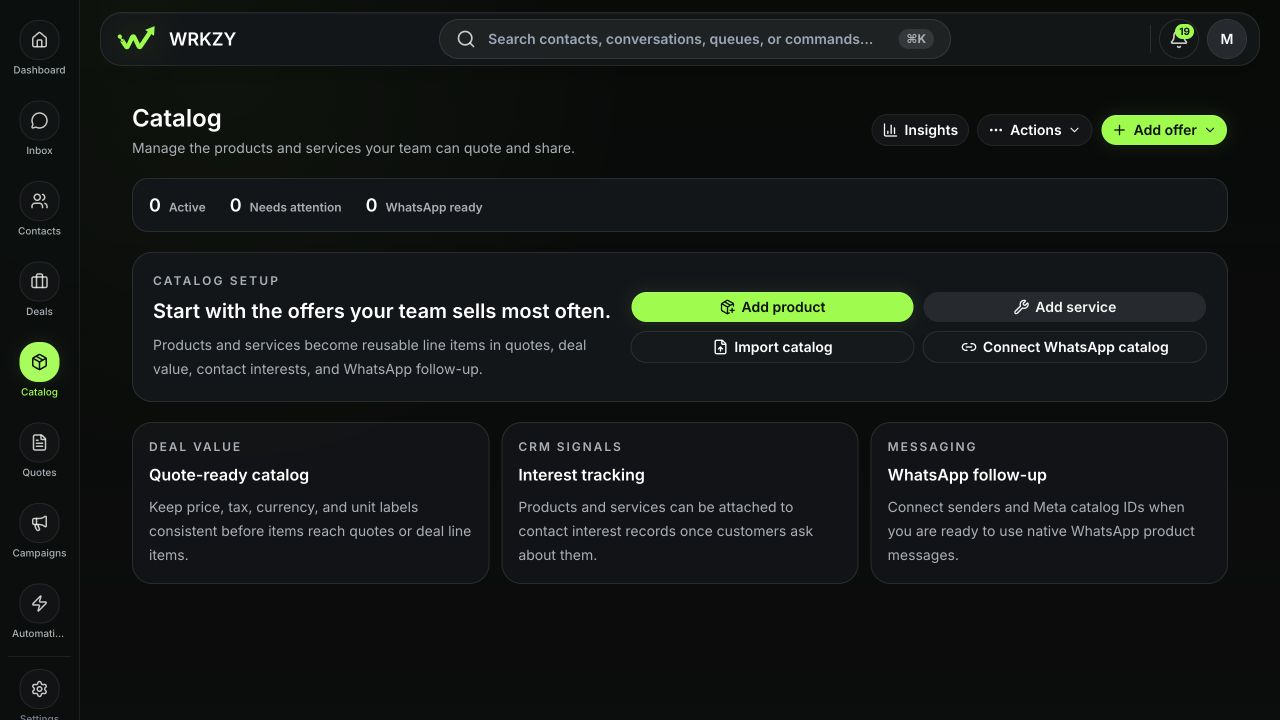
Search the Catalog by name and SKU or service code. If a similar item exists, decide whether it needs another approved price, an updated description, or a genuinely separate offer. Confirm who may view the item and whether a Member-entered price requires approval.
 Open full size
Create the item
- Open Catalog and choose Add product or Add service.
- Enter a clear customer-facing name and a unique SKU or service code when your organization uses one.
- Select or enter a consistent category.
- Write a sales-ready description. For a product, explain what it is and the relevant differentiator. For a service, summarize scope, deliverables, exclusions, and fit.
- Set unit price, currency, tax rate, and unit label or pricing basis. For a service, add estimated duration when it is operationally useful.
- Enter internal cost only if your role can view cost and the organization uses margin reporting.
- Set Active or Inactive and choose workspace, manager, or owner visibility.
- Upload a clean PNG, JPG, or WebP image up to 5 MB, or use an approved image URL.
- If native WhatsApp product messaging is configured, add the Meta retailer ID and sender mapping.
- Save and open the item’s Offer 360 view.
Product versus service
| Field | Product | Service |
|---|---|---|
| Code | SKU | Service code |
| Description | Features, use, and fit | Scope, deliverables, exclusions, and fit |
| Unit | Each, pack, license, or other sale unit | Hour, session, project, month, or other pricing basis |
| Duration | Usually not needed | Estimated delivery or session minutes when relevant |
| Image | Clean product visual | Branded service or team visual |
Price and approval behavior
The item’s base price is not the only possible price. Offer 360 supports versioned price records by currency, customer segment, channel, flat or recurring model, billing interval, quantity range, and effective dates. When price approval is required, a Member proposal remains pending until an authorized reviewer approves or rejects it with a reason.
Verify before use
- Search the item from the Catalog and confirm type, category, status, and visibility.
- Open it in a deal or quote picker; inactive and unauthorized items should not appear.
- Confirm currency and tax in a draft line item.
- Review channel readiness. Native WhatsApp sharing requires the external catalog mapping; otherwise WRKZY can use the supported text fallback.
Recovery
Edit a mistaken draft item before use. Once an offer has historical quotes or customer interest, preserve history by making a corrected item or price version and archiving the obsolete record. Permanent deletion is limited to authorized archived cleanup.
- No duplicate name or code exists
- Description is customer-ready
- Price, currency, tax, and unit are correct
- Visibility and availability tested
- Channel mapping reviewed
- Offer appears correctly in Deal and Quote pickers