
- Catalog management access as an Owner, Admin, or Member enabled by an Admin, plus a reviewed source file
- Stable item codes, currencies, pricing, and active-status decisions
- A backup export or rollback reference before a large change
- A small representative file for the first import test
Prepare with the WRKZY template
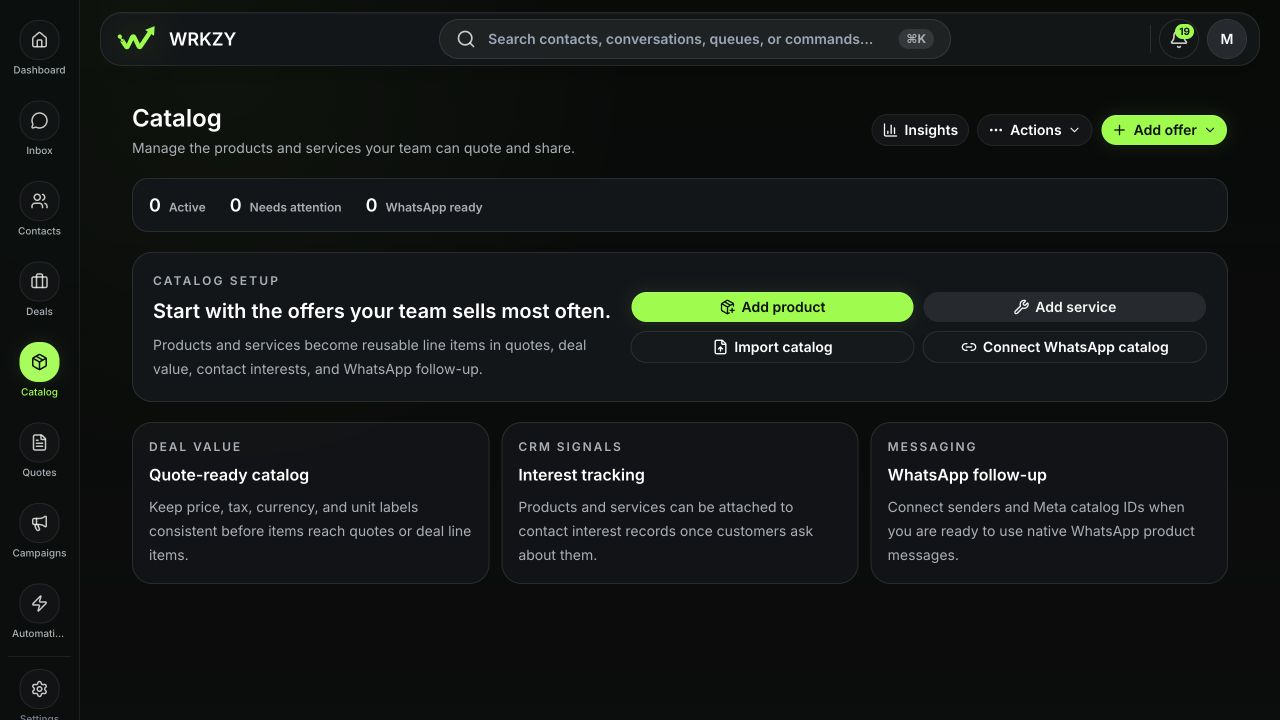
Open Catalog → Import and download the CSV template. Prepare one product or service per row. Standardize item type, name, SKU or service code, category, description, image URL, unit price, currency, tax rate, unit label, service duration, and active state.
Cost price is permission-sensitive. Include it only when the importing role can view cost and the organization has approved margin data for this workspace.
 Open full size
Preview and import
- Choose the CSV file in the Import drawer.
- Review Rows to fix and the valid-row preview before execution.
- For duplicate SKU or service code, choose Skip existing active items when the file is additive, or Update existing active items only when the file is the approved source of change.
- Compare several previews across products, services, currencies, taxes, and active states.
- Start the import and wait for the imported count and any row errors.
- Download the error CSV when rows fail; retain source row numbers.
| Policy | Use when | Risk |
|---|---|---|
| Skip existing | Existing WRKZY records remain authoritative | Intended updates will not apply |
| Update existing | Approved file should update matching active records | Incorrect source values can affect future deals and quotes |
Verify the batch
- Filter Catalog by Products, Services, Inactive, and Archived.
- Search a sample by exact SKU or service code.
- Open Offer 360 and verify base price, currency, tax, visibility, and active state.
- Test representative items in deal and quote pickers.
- Review cost and margin only with an authorized role.
Export for reconciliation
Use Export from the Catalog workspace to download the product and service records your role may access. Treat exports as controlled customer-commercial data. Record when and why the file was created, store it according to policy, and avoid using an old export as an unreviewed update source.
Correct problems without multiplying records
Do not re-import the whole source after a partial error. Create a small correction file containing only failed rows. If good rows contain wrong values, choose between a reviewed update import and direct edits based on scale and risk. Archive obsolete items when they already have quote or interest history; do not permanently delete them to make an import pass.
- Template columns and formats reviewed
- Duplicate-code policy chosen deliberately
- Cost data handled by an authorized role
- Valid and error rows reconciled
- Representative items tested in pickers
- Correction file excludes already successful rows