
- Owner/Admin approval for the intended WRKZY workspace
- Administrator access to the Meta business that owns the number
- A supported existing Business App number or a new/unused Cloud API sender
- A destination team inbox and approved test recipient
Choose the connection mode first
Open Settings → WhatsApp → Add WhatsApp sender. WRKZY offers two Meta Embedded Signup paths:
- Connect Business App: choose supported business-app coexistence when the business needs to keep using the WhatsApp Business App while WRKZY syncs supported activity.
- Connect Cloud API: choose a new or unused sender for WhatsApp Cloud API without existing Business App continuity.
Choosing the wrong path can disrupt the operating assumption for the number. Confirm how the business uses it today before starting Meta authorization.
Meta remains the authority for account eligibility and acceptable business messaging. Review the current WhatsApp Business Messaging Policy before connecting a production sender or changing how it is used.
Prepare the business and routing decision
- Confirm the WRKZY workspace URL.
- Confirm the Meta business and WhatsApp Business Account that own the number.
- Identify the person authorized to approve Meta Embedded Signup.
- Decide whether this will be the default outbound sender when several numbers are connected.
- Choose the destination team inbox and the member group responsible for inbound work.
- Record the current number usage and a rollback contact.
- Prepare an approved external test number that can both send and receive.
Complete Meta Embedded Signup
- Select the mode that matches the number.
- Choose Connect Business App or Connect Cloud API.
- Complete Meta's business, account, and phone-number selections.
- Confirm the connection inside Meta when prompted.
- Return to WRKZY and wait for the sender to appear in WhatsApp senders.
- Open sender details and verify the displayed name/identifier, connection type, and status.
- When more than one sender exists, select Set default only after confirming which identity should route ordinary outbound messages.
Meta Embedded Signup requires HTTPS. Local HTTP setup can show a message directing administrators to a deployed URL or HTTPS tunnel.
Read connection and sync state
| State | Meaning |
|---|---|
| Connected | The sender is available to WRKZY; continue with routing and message tests |
| History sync requested | WRKZY has asked Meta for supported history |
| Syncing history | Supported history processing is active |
| History synced | The requested supported history completed |
| Disconnected | Provider authorization or connection is no longer usable |
| Connected with sync warning | New messaging may still work even if historical synchronization needs review |
History synchronization and new-message transport are related but not identical. A sync warning does not automatically prove inbound or outbound messaging is down.
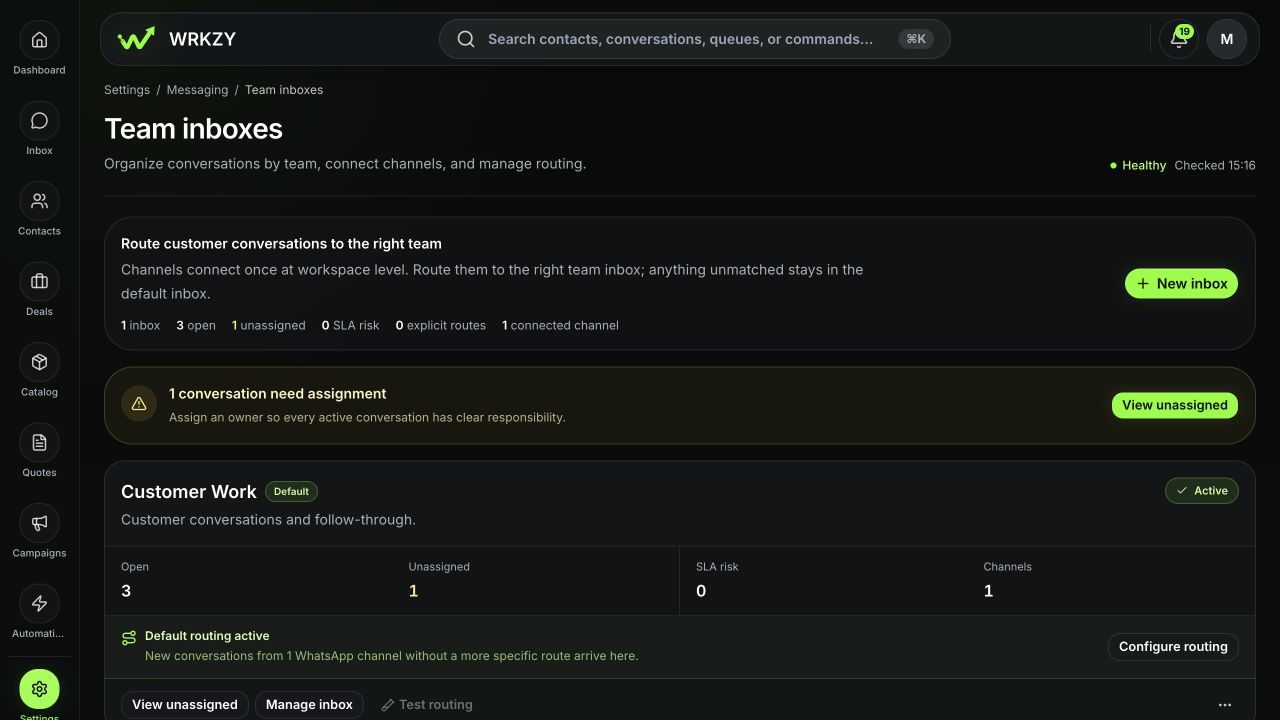
Route the sender to Work
- Open Settings → Messaging → Team inboxes.
- Select the responsibility-owned inbox.
- Attach or route the connected WhatsApp sender.
- Confirm members, default/fallback routing, and any separate SLA or policy.
- Review the channel count and explicit-route summary.
 Open full size
Validate the customer path
WhatsApp validation path
- 01GateCustomer permission
Confirm consent and recipient eligibility for the intended message.
- 02IdentityApproved sender
Use the connected business identity and its provider rules.
- 03DecisionSession or template
Choose content allowed for the current conversation window.
- 04EvidenceProvider delivery
Submitted is not delivered; read the provider-backed state.
- 05OutcomeReply and follow-through
Route the response or exception to an accountable owner.
- From the approved external test number, send a unique harmless message to the connected business number.
- Confirm a conversation appears in Inbox → Work under the expected team inbox and WhatsApp channel label.
- Verify the customer/test contact and connected sender identity.
- Assign the conversation.
- Send a reply that complies with the current WhatsApp conversation/template requirements shown by the product.
- Confirm the message changes from Sending to Sent and then any provider-reported Delivered/Read state.
- Verify the reply arrives on the external device.
If validation fails
- Embedded Signup unavailable: preserve the exact visible message and contact WRKZY Support. Do not enter provider data in a workaround form or share Meta credentials.
- Meta returns no account or phone ID: restart only after the business owner confirms the correct WABA and registered number.
- Connected, no inbound message: verify the exact number, Meta callback subscription, sender status, and team-inbox route.
- Inbound works, outbound fails: verify default sender, recipient eligibility/restriction, allowed message type/template, and the visible error.
- Wrong team inbox: correct the channel route; do not rely on permanent manual reassignment.
- History sync failed: test new inbound/outbound separately, then recover the sync problem without removing a working sender.
- First reply is unclear: inspect message state before retrying to avoid duplicates.
Removing a number is consequential. It can stop future use in WRKZY; resolve exact target and continuity before confirming removal.
Measurable readiness
Track percentage of inbound tests routed correctly, unassigned WhatsApp work, send failures by reason, and time from provider failure to recovery. “Connected” is a setup milestone; correctly routed and verified customer communication is the outcome.
- Connection mode matches current number use
- Company-owned Meta authorization used
- Correct sender and default confirmed
- Team-inbox route verified
- Inbound test received
- Outbound test delivered to approved recipient
- Provider state reviewed
- No credentials captured