
Choose the channel for the customer promise
Connect the address or number customers already use for the workflow. Do not choose a personal account simply because it is easier to authorize.
| Need | Start with | Important design decision |
|---|---|---|
| Shared WhatsApp conversations and approved templates | WhatsApp sender | Existing Business App coexistence or a new/unused Cloud API sender |
| Shared operational email such as support@ or sales@ | Team email connection | Receiving path plus direct Google, Microsoft, or SMTP sending |
| Owner-scoped work correspondence | Private Mail | Keep private by default; deliberately link or share context |
Private Mail is not a substitute for a team-owned support or sales address.
Prepare before authorization
- Confirm the workspace name and URL.
- Identify the business owner of the sender and the administrator who can authorize it.
- Decide which team inbox should receive new conversations. If no specific route matches, WRKZY can place work in the default inbox.
- List the teammates responsible for that inbox and the expected response policy.
- Choose an internal test sender and recipient. Tell them when tests will occur.
- Record the existing provider setup so rollback does not depend on memory.
Connection and routing are separate decisions
- 01SourceConnected channel
WhatsApp, shared email, or another supported source receives the message.
- 02RouteTeam inbox
Channel rules place the conversation with the responsible team.
- 03TriageQueue and priority
State, SLA, and filters determine when it needs attention.
- 04OwnAccountable owner
One teammate becomes responsible for the outcome.
- 05ActReply, resolve, or follow up
The conversation ends with a visible result or next action.
Connect the provider
For WhatsApp
Open Settings → WhatsApp, select Add WhatsApp sender, and choose the path matching the number's current use. Connect Business App is for supported coexistence; Connect Cloud API is for a new or unused sender. Complete Meta Embedded Signup using the business account that owns the number. Return to WRKZY and confirm the sender appears as Connected. Set a default sender deliberately when more than one is available.
For shared email
Open Settings → Email and create the shared email connection. Configure receiving as instructed for the mailbox, then choose a direct sending method: Microsoft 365, Google Workspace, or SMTP. Complete the provider authorization or SMTP test. WRKZY may show a fallback sender until direct sending succeeds; do not treat fallback availability as proof that the branded shared address is ready.
Provider connection screens can involve credentials, app passwords, and authorization grants. Enter them only in the provider or WRKZY setup control designed for that value—never in a note, screenshot, or support ticket.
Route the channel
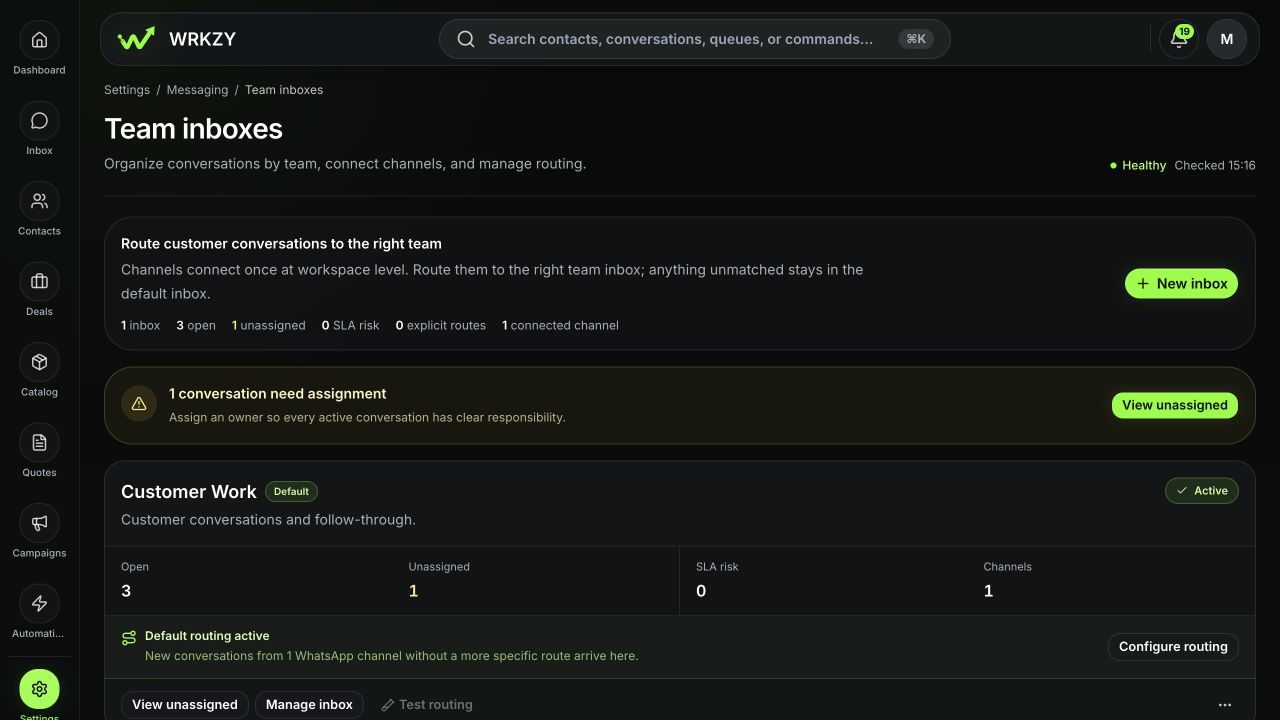
- Open Settings → Messaging → Team inboxes.
- Select or create the responsibility-owned inbox.
- Attach the connected channel or configure its explicit route.
- Confirm the member group that will own incoming work.
- Use the visible routing summary or test routing control where available.
 Open full size
Prove the connection end to end
Do not stop when the settings page says Connected.
- Send one inbound message from the approved external test account.
- Confirm it appears in Inbox → Work, in the intended team inbox and channel scope.
- Confirm the customer identity and sender label are correct.
- Assign the conversation to the test Member.
- Send a harmless reply from WRKZY.
- Verify the message progresses through the channel's delivery states and is received by the test account.
- Confirm another authorized inbox member can understand the thread and next action.
Decision points and recovery
- Connected, but no inbound message: check the specific channel route, provider subscription/sync health, and whether the test used the connected number or address.
- Inbound works, but reply fails: verify direct email sending or the default WhatsApp sender, then read the failure reason before retrying.
- Conversation reaches the wrong team: correct routing at team-inbox level; do not manually reassign every future conversation as a workaround.
- Provider authorization belongs to an employee: replace it with a durable company-controlled authorization before launch.
- A first test may have sent: inspect the conversation and delivery record before repeating it.
Measurable completion
The channel is ready when a test conversation reaches the correct queue, gains an owner, receives a successful reply from the intended sender, and leaves enough state for another teammate to continue. Track first-response routing accuracy and unassigned conversation count after launch.
- Company-owned sender authorized
- Correct workspace and default sender confirmed
- Team-inbox route configured
- Inbound test reached expected queue
- Outbound test used intended identity
- Provider-backed delivery state reviewed
- No secrets captured in evidence