
- Owner or Admin access to AI settings
- An approved list of AI capabilities and allowed context sources
- A human-review owner for every customer-facing AI output
- A sanitized test case without secrets or unrelated customer data
The control boundary
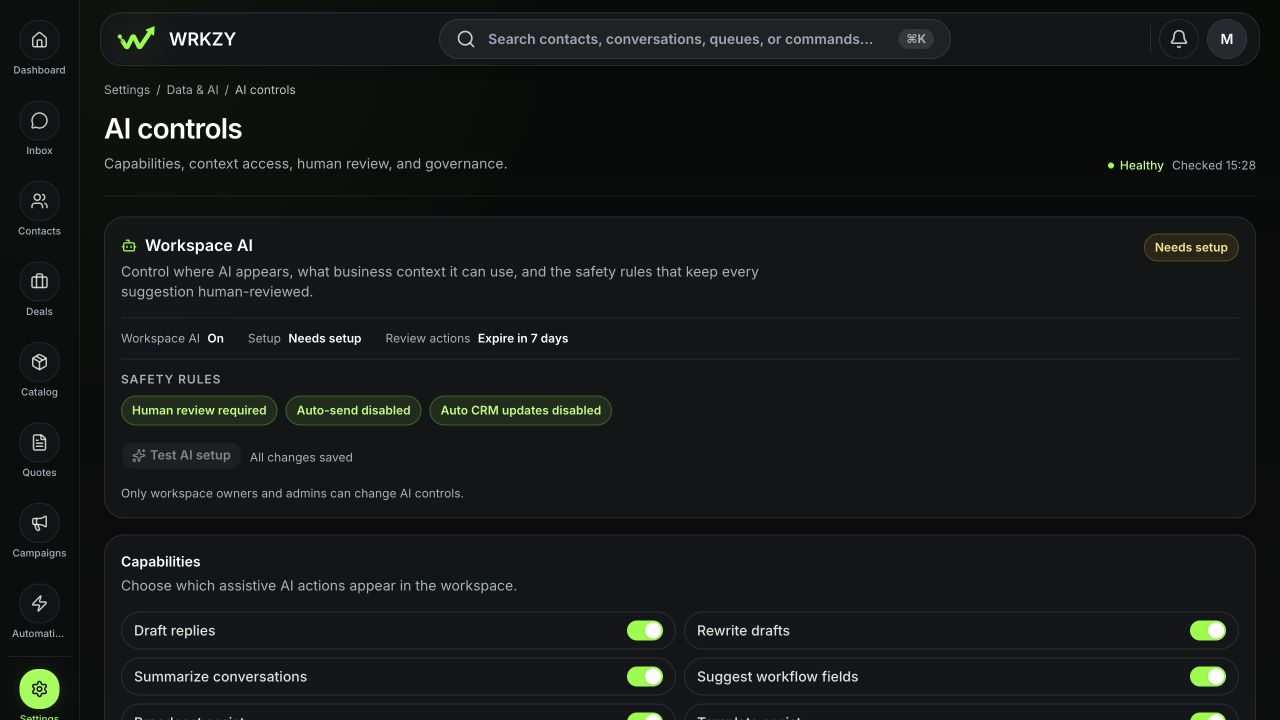
Open Settings → AI controls. Only workspace Owners and Admins can change these settings. The page separates Setup status, workspace enablement, capabilities, context access, and governance. Its safety rules state that human review is required, auto-send is disabled, and automatic CRM updates are disabled.
 Open full size
The AI review boundary
- 01InputAuthorized context
Only permitted customer and workspace information enters the task.
- 02AssistAI suggestion
A summary, draft, or recommendation is generated but not committed.
- 03ReviewHuman verification
Check facts, tone, commitments, dates, and amounts against sources.
- 04DecisionEdit or reject
Unsupported output is corrected or discarded.
- 05OutcomeApproved action
A person uses the normal product control to proceed.
Configure Workspace AI
- Confirm the header shows Available. If it shows Needs setup, stop configuration, preserve the visible status, and contact WRKZY Support. Repeatedly changing workspace controls will not make the service available.
- Turn Workspace AI on only after the use case, reviewer, and allowed data are defined.
- Under Capabilities, enable only assistive actions the team has trained reviewers to use.
- Under Context access, enable only the CRM context needed for those actions. More context is not automatically better.
- Select Save changes.
- Select Test AI setup and confirm the success message.
- Open Governance & activity and configure aggregate quality monitoring.
Do not use capability access as a replacement for record permissions. A user must still be authorized to see and act on the underlying customer context.
Review governance without employee surveillance
The AI decision quality view supports 7-, 30-, and 90-day ranges and filters for team inbox, channel, AI capability, and outcome type. It reports aggregate reviewed volume, acceptance, edits before send, evidence coverage, governance coverage, similarity, and review time. It does not expose prompts, message evidence, customer records, or individual rankings in the aggregate metrics.
Owners and Admins can export the aggregate CSV. Historical runs that cannot be reconstructed into review decisions are shown as a coverage gap rather than fabricated approvals.
Configure quality delivery
In Governance & activity, use Quality alerts and Weekly summary only after choosing meaningful thresholds:
- Minimum reviews prevents a tiny sample from triggering conclusions.
- Acceptance floor can reveal irrelevant suggestions.
- Edit ceiling can reveal suggestions requiring too much correction.
- Evidence floor can reveal weakly grounded proposals.
- Summary day determines the weekly governance rhythm.
Threshold breaches should start a review, not automatically disable a person or rank individual Members.
Verify the control
Use an authorized test conversation. Confirm disabled capabilities do not appear, enabled capabilities can produce a suggestion, restricted context is absent, and no output is sent or written without a human action. Then confirm Recent usage records status metadata.
Safe rollback
If an unexpected capability or context appears, turn off the specific capability or context first; turn off Workspace AI if the scope is unclear. Save, retest, and preserve the approximate time, action label, workspace, and redacted screenshot. Never include prompt content or customer messages unless explicitly authorized and necessary.
- Workspace AI readiness confirmed
- Only necessary capabilities enabled
- Context access minimized
- Human review and no-auto-action boundary verified
- Governance thresholds use a meaningful sample
- Unexpected access tested after rollback