
- An automation draft with a verified trigger
- A written rule for each branch, action, and wait duration
- A clearly marked test record that can be changed safely
- An expected final state for every tested path
Design the path before the cards
Write the happy path and the exception path in plain language before adding steps. Every action should answer one of four needs: communicate, update business context, route work, or call an integration. Conditions decide; waits defer; neither is an outcome by itself.
Execution order
- 01StartTrigger
A precise event creates one eligible run.
- 02GateConditions
Rules exclude records that should not proceed.
- 03ExecuteWaits and actions
Ordered steps change data or create customer work.
- 04ControlHuman approval boundary
Consequential actions stop for accountable review.
- 05ProofExecution receipt
The run records inputs, steps, result, and recovery evidence.
Available action groups
| Group | Examples | Primary risk |
|---|---|---|
| Messaging | Send WhatsApp message; Send WhatsApp template; Send email | Wrong recipient, purpose, consent, or duplicate delivery |
| CRM | Tags and lists; contact or company fields; deals, tasks, owners, product interest; human handoff | Overwriting trusted data or creating duplicate work |
| Routing | Assign conversation; notify deal owner; close conversation; wait | Losing accountability or closing work too early |
| Logic | Condition; Run Reusable Workflow | Unreachable branches, loops, or hidden dependencies |
| Integrations | Send Webhook | Duplicate or unverified external side effects |
Add a condition
- Select the plus control where the decision belongs and choose Condition (If/Else).
- Choose the subject and operator. Match the value to the field type; do not compare a label when the condition expects an identifier.
- Put the qualifying path under Yes and the safe alternative under No.
- Add a meaningful No path when silence would strand work—for example, create a human handoff instead of doing nothing.
- Test records that exercise both branches.
Conditions can be nested, but deep nesting makes incident review harder. Prefer a sequence of clear decisions or a reusable workflow with a documented purpose.
Add an action safely
- Select the plus control at the correct point in the path.
- Search actions or choose a group.
- Configure the required destination, content, owner, field, stage, or connection.
- For email, select a shared inbox and classify the purpose correctly. The builder states that relationship email requires prior inbound email and marketing email requires recorded opt-in.
- Add If this step fails when failure requires a human handoff, notification, or safe stop.
- Save and use Review to find missing configuration.
For customer communication, use a clearly authorized recipient. WhatsApp free-form and template rules still apply inside automation. For webhooks, design the receiving service so the same request can arrive more than once without creating duplicate work, because network outcomes can be uncertain.
Add a wait
Use a duration wait when time itself is the requirement. Use an event wait when the journey should continue after a customer or business signal. An event wait exposes Event received and Timed out paths; configure both so the record cannot wait forever without an owner.
Place waits after the action that establishes the expectation. Example: send a requested follow-up, wait for an email reply, then route the reply path to the owner and the timeout path to a reminder or human work item.
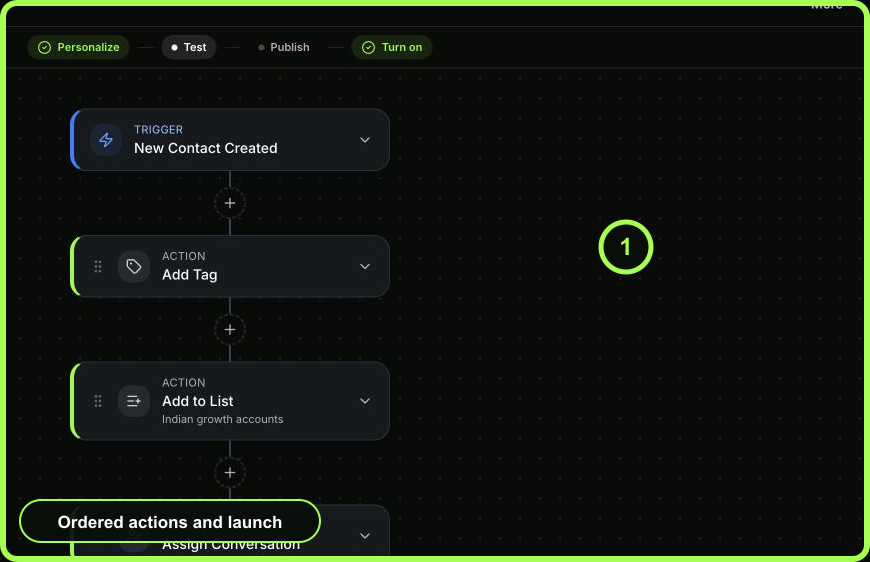 Open full size
Verify with simulation
Select Review, resolve validation issues, and run a test against a marked test contact, deal, company, list, or quote appropriate to the trigger. Read each simulated step status and path. A skipped branch can be correct; a missing step is not.
A live test executes real actions, including messages, CRM changes, webhooks, and waits. Use it only after a simulation is clean and the test record is safe.
Recovery
If the wrong branch ran, pause the workflow and compare the run's saved input with the condition subject, operator, and value. If an action failed, inspect whether Runs shows Receipt saved, Duplicate prevented, or Outcome uncertain before retrying. A saved or safely reused result must not be repeated; an uncertain outcome stays blocked to prevent duplication. Cancel or reschedule an individual waiting item from Runs instead of changing the entire workflow when only one customer journey is affected.
- Happy and exception paths written in plain language
- Yes and No branches tested
- Every event wait has a timeout path
- Customer messages have correct purpose and consent basis
- Failed side effects are inspected before retry