
- Owner or Admin access to security, session, and audit views
- Knowledge of the workspace's approved users and connected services
- An incident owner and escalation path for unexpected activity
Three layers of security evidence
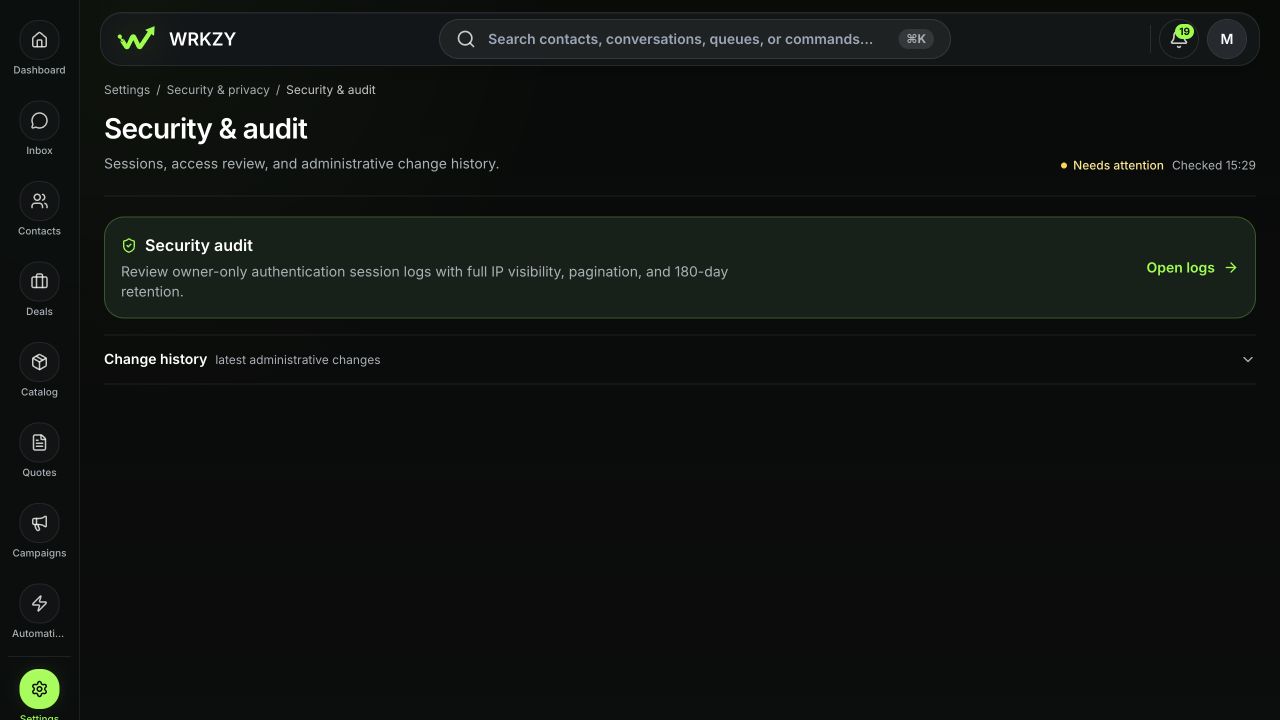
WRKZY separates personal account security, administrative change history, and authentication audit:
| Layer | Where | Who and what |
|---|---|---|
| Personal security | Settings → Profile & security | Every user manages their own password, authenticator MFA, personal connections, and active sessions |
| Settings change history | Settings domain disclosures and overview | Shows recent administrative changes with actor, action, target, and time when available |
| Authentication audit | Settings → Security → Session logs | Owner-only events and sessions with member filters, full IP visibility, pagination, and a 180-day review window |
An Admin role does not grant access to another person's password, MFA seed, or session token. Full-IP authentication audit is intentionally Owner-only because it contains sensitive member and network history.
Security accountability
- 01AccountOrganization
The customer account and ownership boundary.
- 02ScopeWorkspace
The operating area where customer work and configuration live.
- 03GovernOwner
Controls the organization, subscription, and highest-risk access.
- 04ConfigureAdministrator
Configures members, channels, defaults, and operating controls.
- 05OperateMember
Works customer queues, records outcomes, and escalates exceptions.
Establish the baseline
- Every teammate opens Profile & security, uses a unique password, enables authenticator MFA, and reviews Active sessions.
- Owners and Admins review Members and remove unnecessary elevation.
- The Owner opens Settings → Security → Session logs.
- Switch between Events and Sessions.
- Use member, event type, date range, and page-size filters.
- Record the normal devices, locations, and login rhythm relevant to the organization.
- Review Settings Recent changes after high-risk channel, privacy, AI, role, or billing updates.
| Event family | Examples | Question |
|---|---|---|
| Access | Login; heartbeat; session expired | Does this session belong to the expected person and device? |
| Sign-out | Local; other sessions; global; individual session | Was this an intentional response or routine cleanup? |
| Risk | Auth error; security action | Is there a repeated pattern, unknown device, or access change requiring containment? |
Investigate a concern
Start with the affected user and smallest time window. Compare event time, session state, browser/device, and IP. Ask the user to review their personal Active sessions. If the session is unknown, end sessions, change the password, verify MFA, and preserve audit evidence. Then review member role and recent administrative changes.
Do not treat a new IP as proof of compromise; mobile networks, VPNs, and travel change addresses. Correlate several signals.
Evidence and privacy
Full IP addresses and authentication history are personal security data. Share them only with authorized responders. Screenshots should exclude unrelated members and customer data. Never collect passwords, authenticator QR secrets, one-time codes, cookies, access tokens, or private keys.
 Open full size
Recovery and escalation
If role verification is unavailable, reload before interpreting an empty audit. For confirmed compromise, end sessions first, rotate credentials, then investigate. Preserve organization/workspace, user ID or work email, event/session ID, approximate time and timezone, event type, relevant IP only when authorized, and actions already taken.
- Personal MFA and sessions reviewed
- Elevated membership checked
- Owner-only Events and Sessions filtered to the incident
- Signals correlated before declaring compromise
- Containment performed before deep analysis
- Sensitive audit evidence shared only with authorized responders