
- A specific business event that should start the workflow
- A representative record showing the event's available fields
- A plan for duplicate, delayed, and out-of-order events
Start with the business event
A trigger is not a filter and it is not the desired outcome. It is the single observable event that creates a run. Choose a trigger only after writing: “This workflow should begin exactly when…” If the sentence describes a state such as “high-value customer,” use a real event as the trigger and test the state with a condition.
Trigger families
| Family | Available signals | Use when |
|---|---|---|
| Conversation | New Message Received; Email Received; Email Replied; First Message from Contact; Keyword Match; Conversation Assigned | The journey begins from inbound customer work or routing |
| CRM | New Contact Created; Tag Added; Contact Added to List; Contact Removed from List; Contact Company Changed; Company Created | A governed CRM change is the reliable start |
| Commercial | Deal Created; Deal Stage Changed; Deal Outcome Changed; Forecast Category Changed; Deal Became Stale; Product Interest Changed; Quote Accepted; Quote Rejected | The next action depends on a recorded sales event |
| Controlled entry | Manual Command; External Webhook | A teammate, reusable workflow, form, or external system explicitly starts the journey |
| Schedule | Time-Based | The workflow should evaluate on a selected daily time and timezone |
Smart-list membership is not available for these list triggers; choose a manual list instead. A time-based trigger runs at the selected daily time and optional timezone. If the schedule you need is not available in the builder, keep the workflow paused and contact WRKZY Support before designing a workaround.
Configure the trigger
- Open Automations, create or edit a workflow, and expand the Trigger card.
- Under When should this start?, search customer signals and select the event.
- Complete the event-specific requirement:
- Keyword Match: define the matching behavior and terms.
- Tag Added: choose the exact tag.
- Contact Added to List or Removed from List: choose a manual list.
- Contact Company Changed: choose the company.
- External Webhook: keep the generated webhook key private and rotate it if exposed.
- Manual Command: give the command a stable lowercase key.
- Time-Based: set HH:mm and the intended timezone.
- Configure Safety and governance: quiet hours, frequency cap, automatic pause after repeated failures, and an optional suppression tag.
- Configure Journey rules only when needed: re-entry, goal, exit event, or journey suppression.
- Select Review and resolve every trigger validation issue.
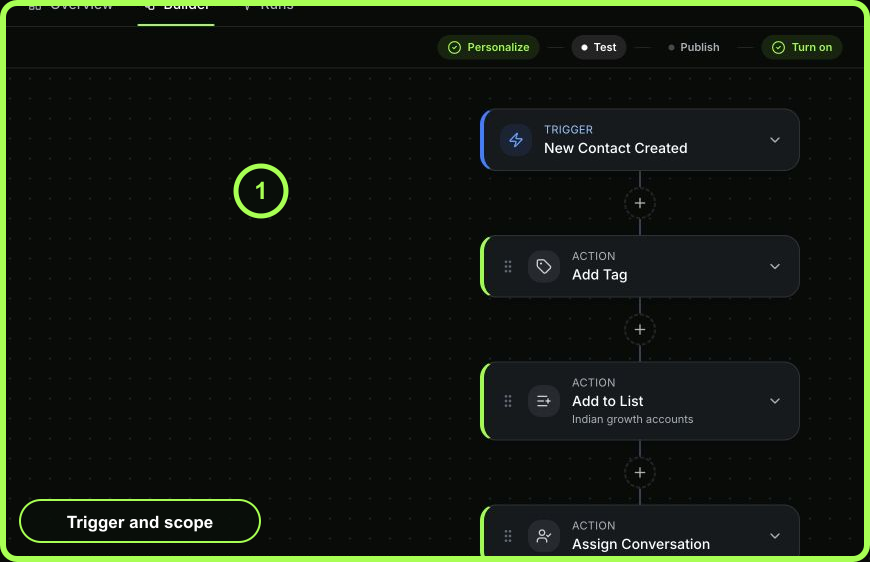 Open full size
Decision rules that prevent noisy automation
- Prefer Email Replied over a broad inbound trigger when only replies to an existing email thread qualify.
- Prefer Deal Stage Changed over a scheduled scan when the action belongs to a completed stage change.
- Use First Message from Contact for first-contact onboarding; do not approximate it with a tag unless that tag is reliably governed.
- Use Manual Command for internal controlled entry. Use External Webhook only for a system outside WRKZY.
- Use a condition after the trigger for eligibility that can change independently, such as owner, tag presence, or a field value.
- Add a frequency cap whenever an event may happen repeatedly.
Test the boundary
Create one test record that should enter and one that should not. Run the builder test with the intended context and inspect the simulation. Confirm the selected event, audience or record filters, safety skip reason, and branch path. For a live test, remember that messages, CRM updates, webhooks, and waits are real.
Recovery
If too many records enter, pause the workflow first. Then check whether the trigger is broader than intended, a scope selector is empty, re-entry is too permissive, or the frequency cap is disabled. Do not delete run evidence. If an external webhook key may have leaked, generate a new key before resuming the integration.
- One observable start event selected
- Required tag, list, company, key, or schedule configured
- Timezone confirmed for scheduled work
- Frequency, quiet hours, and suppression considered
- Positive and negative test records verified