
- A complete automation draft with named trigger and outcomes
- Clearly marked test records for expected and exception paths
- An approver who understands the affected customer workflow
- A monitoring and pause plan for the first live executions
Four different gates
| Gate | What it proves | Who can complete it |
|---|---|---|
| Save | Draft configuration is stored | A permitted workflow editor |
| Test | Current draft passed the selected simulation or live test context | A permitted workflow editor using authorized data |
| Approve | A reviewer accepts the workflow design and risk | Owner or Admin |
| Publish | A versioned execution snapshot is created | Owner or Admin; a Member only after approval or for an already published workflow |
| Turn on | The published workflow may accept eligible events | Owner or Admin lifecycle control |
Editing the name, description, trigger, configuration, or steps resets approval to draft. Test again after any such edit.
Prepare the release record
Before requesting approval, document the workflow owner, expected volume, recipient/record scope, customer communication purpose, suppression rules, failure owner, and a rollback candidate. Run a positive test, a negative test, and each meaningful condition or timeout branch.
Request and approve
- Open the workflow's Builder.
- Select Review and clear all validation issues.
- Run Test workflow or Test changes against controlled context.
- If you are a Member and the workflow is not already approved, select Request approval.
- An Owner or Admin opens the same workflow, inspects the trigger, steps, safety controls, test result, and intended business outcome.
- The reviewer selects Approve request only when evidence matches the proposed behavior.
Approval is not a substitute for a test, and it does not turn the workflow on.
Publish and activate
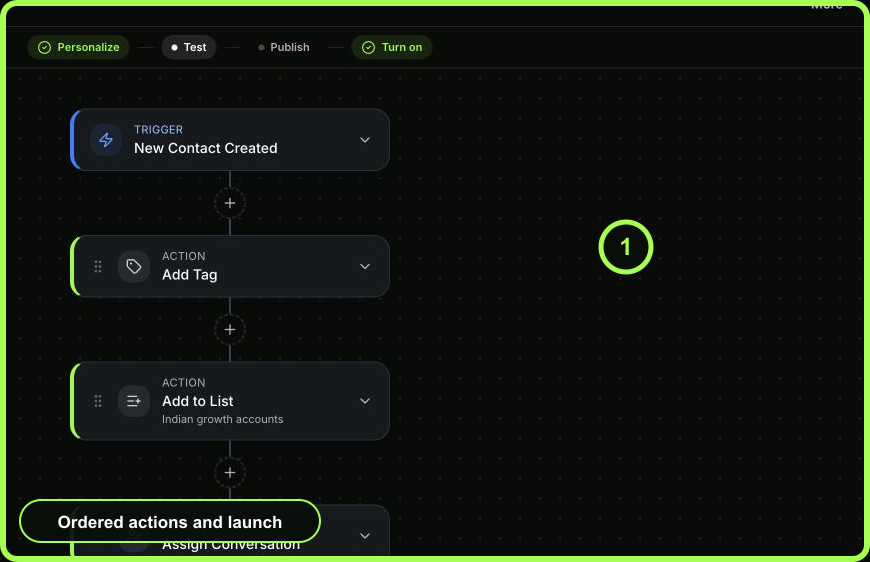
- After approval, select Publish or Publish changes. WRKZY creates the next version and keeps the version history.
- Confirm the published version number in the success message or workflow overview.
- Select Turn on.
- Return to the automation directory and confirm the lifecycle reads Live.
- Watch the first eligible production runs in Runs. Verify the trigger, step path, and visible action outcomes.
 Open full size
A cautious first release
For a new customer-facing workflow, activate during staffed hours and begin with the narrowest eligible scope. Keep the failure auto-pause threshold, frequency cap, and suppression tag aligned with the expected volume. Assign someone to inspect the first successes as well as the first failure.
Recovery
If the wrong draft was published, pause immediately; do not try to “fix forward” while events continue. Open Version history from the automation directory and make the last known-good version live. The rollback publishes a new version and keeps the current draft. If the version is correct but one run failed, recover from Runs instead of rolling back all customers.
If the Turn on control is unavailable, confirm the actor's role, approval status, current test state, validation issues, and whether a published version exists.
- Current draft tested after the latest changes
- Positive, negative, and timeout paths reviewed
- Owner or Admin approval recorded when required
- Published version number confirmed
- Workflow explicitly turned on
- First production runs and action outcomes monitored