
- A legitimate customer relationship or clearly marked test identity
- Verified name plus at least one usable phone or email identifier
- Consent and source details required by the workspace's data policy
- A duplicate search before creating a new record
Before you create a contact
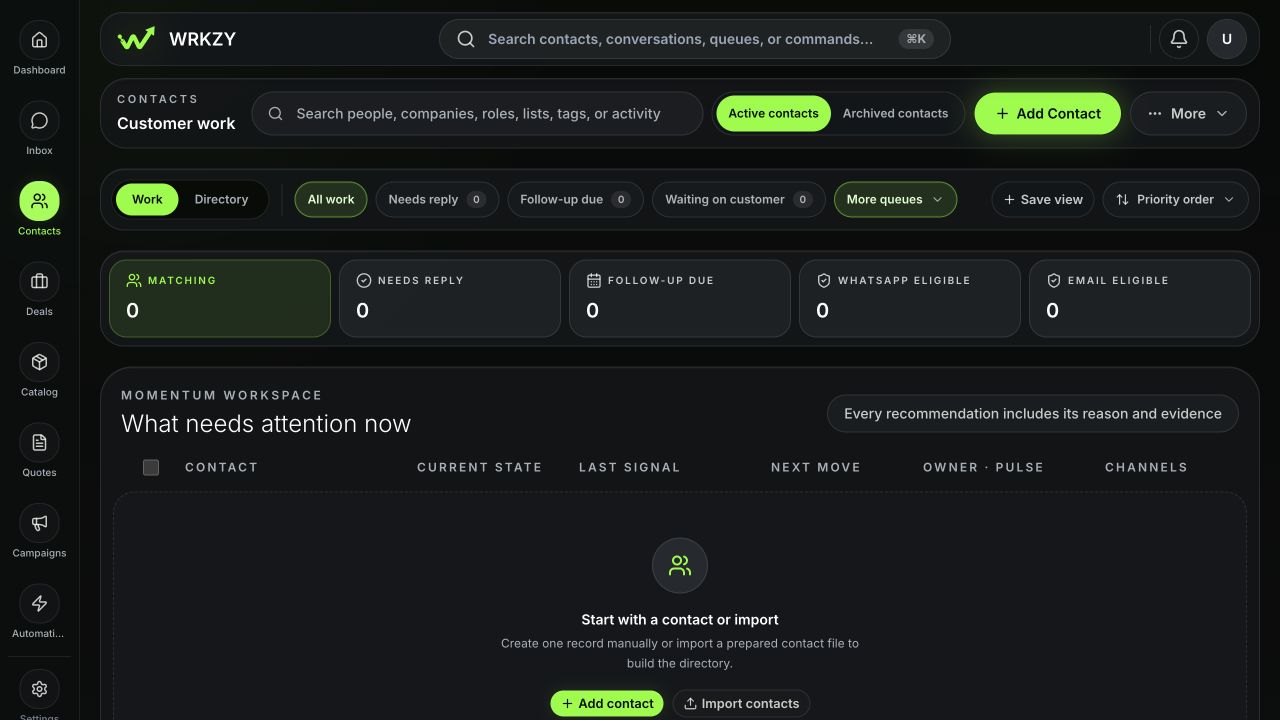
- Search the intended phone number and email on Contacts first. A near match should be reviewed before a second record is created.
- Confirm that your organization is permitted to store the information.
- Know whether the person gave WhatsApp consent, email marketing consent, both, or neither. These are separate decisions.
- Decide who will own the relationship and whether the person belongs to a company.
 Open full size
Create the record
- Open Contacts and choose Add contact.
- Enter the person’s name. Add at least one phone number or email address; the editor requires one reachable identity.
- For each contact method, choose a useful label such as Mobile, Work, or Personal. Add secondary phone numbers or email addresses only when they genuinely belong to the same person.
- Set WhatsApp and email marketing status independently. If you mark a channel as opted in, select the consent source and confirm the displayed consent statement.
- Link an existing company, or create a company only after checking that it does not already exist.
- Assign an owner, lifecycle stage, source, lists, and tags that have an agreed operational meaning.
- Complete relevant custom fields. Leave unknown values blank instead of guessing.
- Save the contact.
Edit without losing context
Open the contact and choose the edit action. Correct identity data carefully: changing a primary email or phone can affect routing and duplicate detection. If the old method still belongs to the person, retain it as a secondary method. If two records actually represent one person, stop editing and use the duplicate-merge workflow.
When moving a contact to another company, verify that historical conversations and open deals still describe the intended relationship. Changing lifecycle, owner, or consent should reflect a real event, not an attempt to make a report look cleaner.
Verify the result
- Reopen the contact and confirm the primary phone or email, company, owner, and lifecycle.
- Open Contact 360 and inspect Details, Timeline, and Commercial.
- Return to Contacts and search by a primary contact method; verify that only the intended record appears.
- If the contact will receive outreach, filter for the corresponding channel eligibility before using it in an audience.
If saving only partly succeeds
WRKZY may save the core contact while a tag, list, or custom-field update fails. Read the notification, reopen the record, and compare each affected section before retrying. Do not create another contact to work around a partial save. Preserve the contact identifier and approximate time if support is needed.
- Existing records searched first
- At least one verified contact method saved
- WhatsApp and email consent reviewed separately
- Company and owner are correct
- Record re-opened and checked in Contact 360