
- A connected WhatsApp sender in the intended workspace
- An approved WhatsApp template with verified variables
- A consented audience and suppression review
- An internal test recipient and campaign approver
Build the campaign
- Open Campaigns, select WhatsApp, and choose New campaign.
- In Template, select the approved template and the intended WhatsApp connection. Review category, language, body, buttons, and required header type.
- In Audience, choose All contacts, Tags, Lists, Custom field, or CSV. Add exclusion tags when a governed group must not receive the send.
- Review the live audience summary: Matched contacts, Sendable now, Duplicates removed, Skipped, invalid phones, and opted-out contacts.
- In Personalize, map every numbered placeholder to a static value, contact field, or custom field. Upload required header media or confirm the saved draft media matches the template type.
- Add a clear campaign name. Choose the primary outcome and results review window.
- In Send, review representative recipients, frequency pressure, sender, content, media, audience, and exclusions.
- Save a draft, schedule, or proceed to the final launch review.
 Open full size
Variable discipline
Map names, dates, amounts, and links to fields that are present and correctly formatted. Test a record with every optional or unusual value. Never use a fallback that changes the meaning of the message. If a placeholder is incomplete, the campaign is not ready.
Contact pressure and eligibility
Marketing templates are evaluated against recent campaign pressure. Review contacts paused by the guardrail. Override only when the send is intentional, important, and authorized; the override is not a way to recover audience size. Non-marketing template categories may be treated differently, but purpose must match the approved template.
Verify the draft
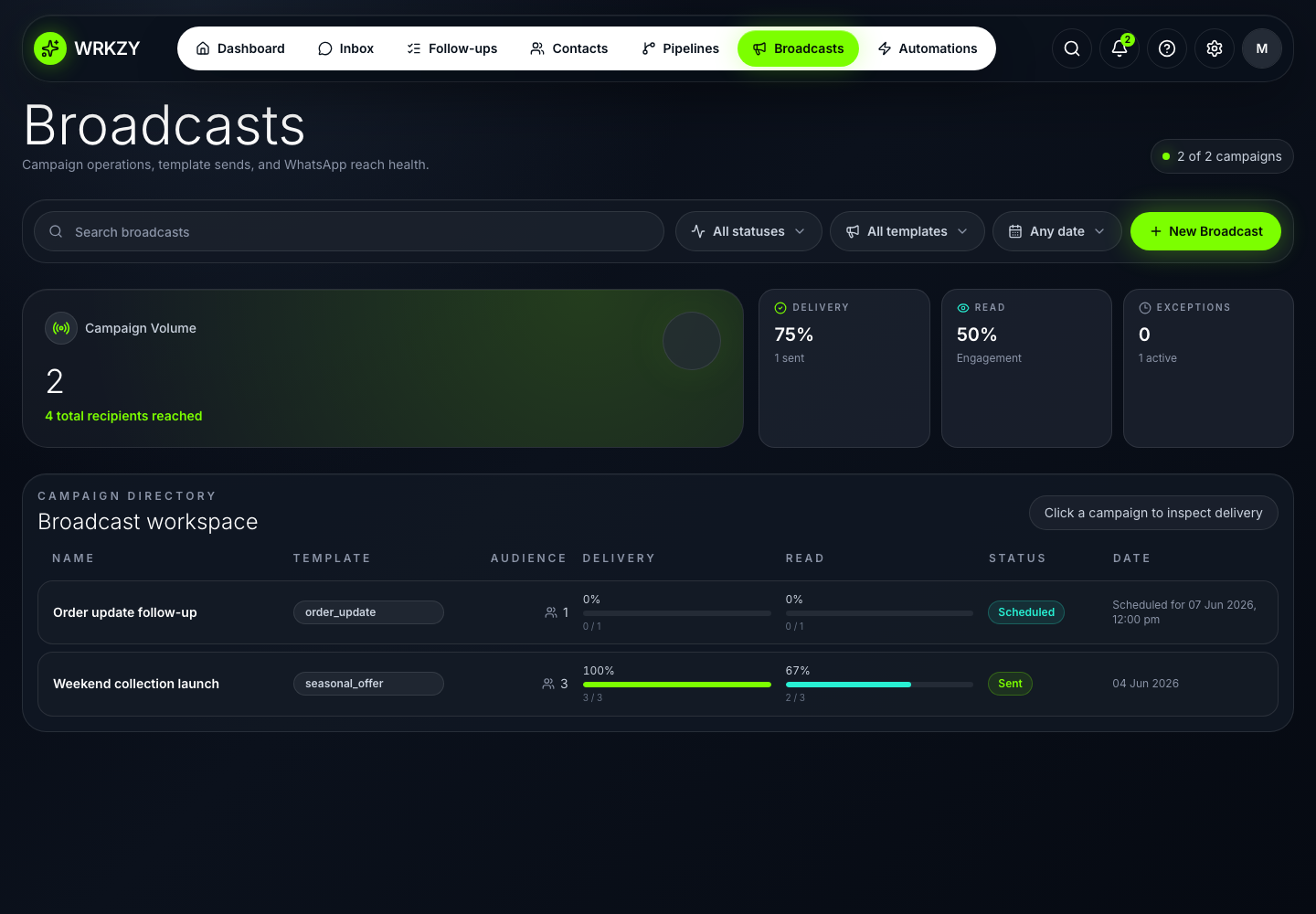
Reopen it from Campaigns. Confirm Draft or Scheduled state, sender, template, audience label, selected count, exclusions, variable mappings, header media, primary outcome, and review window. Test the exact rendered message before launch.
Recovery
If the audience is unexpectedly small, inspect consent, phone normalization, exclusions, duplicates, and list resolution. If the template or sender is missing, return to setup rather than switching records mid-launch. Do not create another draft until you know whether the first one saved or scheduled.
- Approved template and active sender selected
- Audience quality and exclusions reviewed
- All variables render for boundary records
- Required media matches template
- Primary outcome and review window declared
- Contact pressure reviewed without casual override