
- Access to the Automations area in the intended workspace
- A customer workflow you can describe from trigger to outcome
- Permission to inspect the records and logs used by that workflow
The mental model
A WRKZY automation is a published workflow that listens for one customer or business signal, evaluates controls, and then performs ordered steps. Think of it as five connected decisions: when to start, who or what qualifies, what should happen, when a person must intervene, and what proves the run completed.
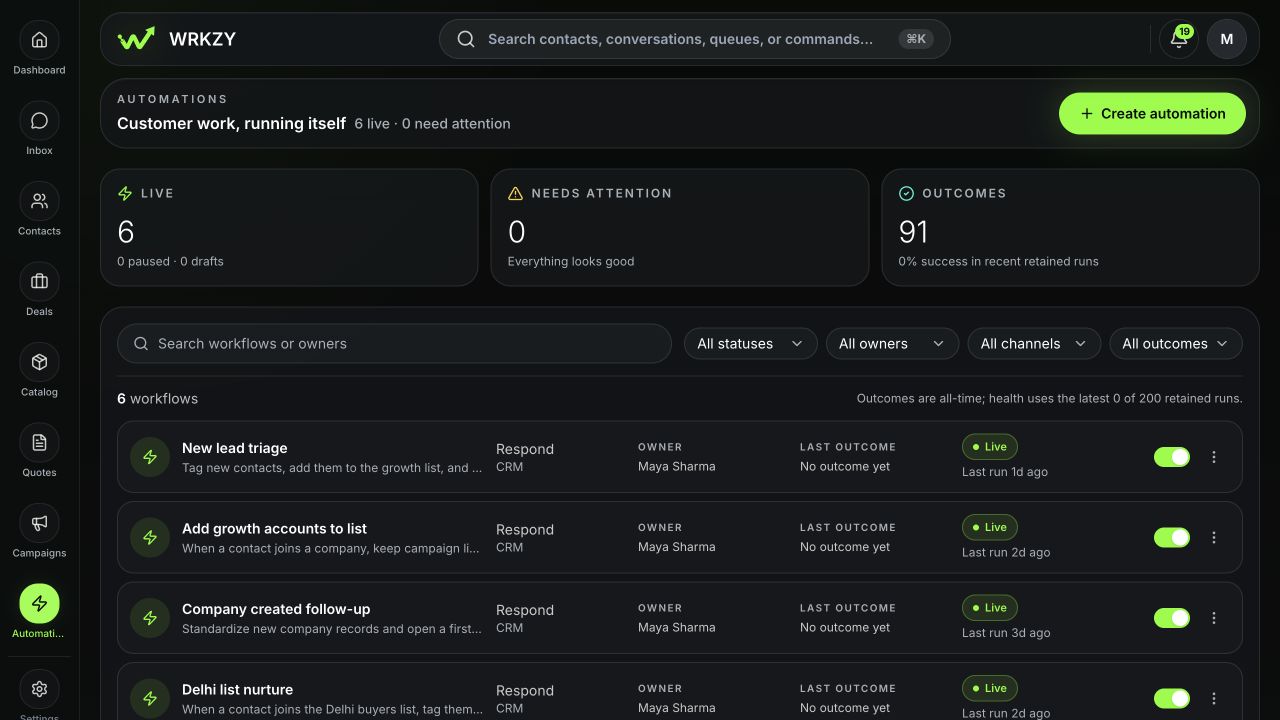
The automation directory is the operating console—not just a list. It separates configuration from execution and shows how many workflows are live, paused, draft, or need attention. It also summarizes recent retained-run success and pending work.
How an automation becomes accountable work
- 01StartTrigger
A precise event creates one eligible run.
- 02GateConditions
Rules exclude records that should not proceed.
- 03ExecuteWaits and actions
Ordered steps change data or create customer work.
- 04ControlHuman approval boundary
Consequential actions stop for accountable review.
- 05ProofExecution receipt
The run records inputs, steps, result, and recovery evidence.
Lifecycle states
| State | Meaning | Operator response |
|---|---|---|
| Draft | Saved configuration that is not live | Finish validation and test it |
| Live | Published version can accept eligible triggers | Monitor outcomes and run health |
| Paused | No new live execution should start | Investigate or edit before turning it on |
| Needs attention | Recent failures or waiting work require review | Open Runs and diagnose the highest-impact failure |
| Archived | Workflow is stopped; versions and run history remain | Restore only when the workflow is needed again |
A workflow can also have unpublished changes. That means the builder contains edits while the currently published version remains the execution source. Do not assume a saved edit is live.
Tour the automation workspace
- Open Automations in the intended workspace.
- Read the summary cards: Live, Needs attention, and Outcomes.
- Use search or filter by lifecycle status, owner, channel, or outcome.
- Open a workflow. Use Overview for health and intent, Builder for configuration, and Runs for execution evidence.
- If the directory shows Needs attention, open that workflow's Runs before making design changes.
 Open full size
What each layer answers
- Outcome answers why the automation exists: respond, qualify, follow up, recover, convert, retain, collect, or escalate.
- Trigger answers which event can enroll a record.
- Safety and journey rules answer who should be suppressed, how often the workflow may run, and when it exits.
- Steps answer what WRKZY attempts, including conditions, waits, customer messages, CRM changes, routing, or webhooks.
- Published version answers which immutable configuration produced a run.
- Run details and action outcomes answer what actually happened.
A practical reading exercise
For any live workflow, explain it in one sentence: “When this verified event occurs for this eligible record, WRKZY will perform these controlled actions, unless this stop or failure rule applies.” If you cannot complete that sentence from the builder, the workflow is not yet easy enough to operate.
Verify your understanding
Choose one workflow and confirm:
- Its owner, outcome, trigger, current lifecycle state, and published version are visible.
- A teammate can distinguish the live version from saved draft changes.
- The Runs view shows recent outcomes or clearly shows that no run has occurred.
- Waiting work and recent failures are not being mistaken for successful completion.
Safe next steps
If the workflow purpose is sound but configuration is unclear, pause it before editing. If the purpose itself is unclear, duplicate it into a draft or archive it after confirming no business process depends on it. Preserve the workflow name, approximate failure time, run ID, published version, and redacted error when escalating.
- Purpose and owner are clear
- Live and draft configuration are distinguished
- Trigger and suppression boundaries are understood
- Recent runs and waiting work were checked
- Failures are investigated from evidence, not repeated blindly