
- The failed run and its last confirmed successful step
- Authority to pause or change the affected automation
- A duplicate-effect check for messages and record mutations
- A documented manual recovery or rollback owner
Choose recovery by affected scope
| Situation | Action | Why |
|---|---|---|
| New runs may still cause harm | Pause workflow | Stops new eligibility while evidence is preserved |
| One failed or partial run | Simulate retry, then retry original version if safe | Limits recovery to one saved input and version |
| One waiting item is wrong | Cancel or reschedule that waiting work | Other customers and the workflow remain unchanged |
| Published configuration is broadly faulty | Use Version history to make a known-good version live | Restores a reviewed snapshot and keeps an audit trail |
| Workflow is no longer needed | Archive | Stops it, cancels waiting runs, and retains versions and history |
Lifecycle recovery controls are available to Owners and Admins. Members can inspect evidence and, where the UI permits an approved workflow release, follow the approval boundary; they should escalate lifecycle changes to an accountable administrator.
Pause before diagnosis
From the automation directory, use the workflow switch or menu to Pause automation. Confirm the directory shows Paused. Existing waiting work is separate; inspect Runs to decide whether individual pending items must be cancelled or rescheduled.
Retry one run
- Open the workflow's Runs and expand the failed or partial run.
- Check the published version, completed steps, and receipts.
- Select the retry action. WRKZY first offers a retry simulation.
- Read which steps would execute, skip, or reuse.
- Only after the simulation passes, choose Retry live and confirm Retry original version.
- Watch the new run to completion.
A live retry uses the original published version and saved input. Completed effects are reused from receipts; uncertain effects remain blocked to prevent duplicates.
Recover waiting work
In Runs, locate the waiting item. Cancel waiting work prevents only that run from continuing. Choose a new resume time changes only that item; it continues from the same published version and saved step. Record why the exception was made.
Roll back a workflow version
- Pause the workflow.
- From the automation card menu, open Version history.
- Compare version number, timestamp, actor, trigger, and description with the last known-good release.
- Select the version and confirm Make live.
- WRKZY publishes that snapshot as a new version and keeps the current draft.
- Test the new live version, then turn the workflow on and monitor the first runs.
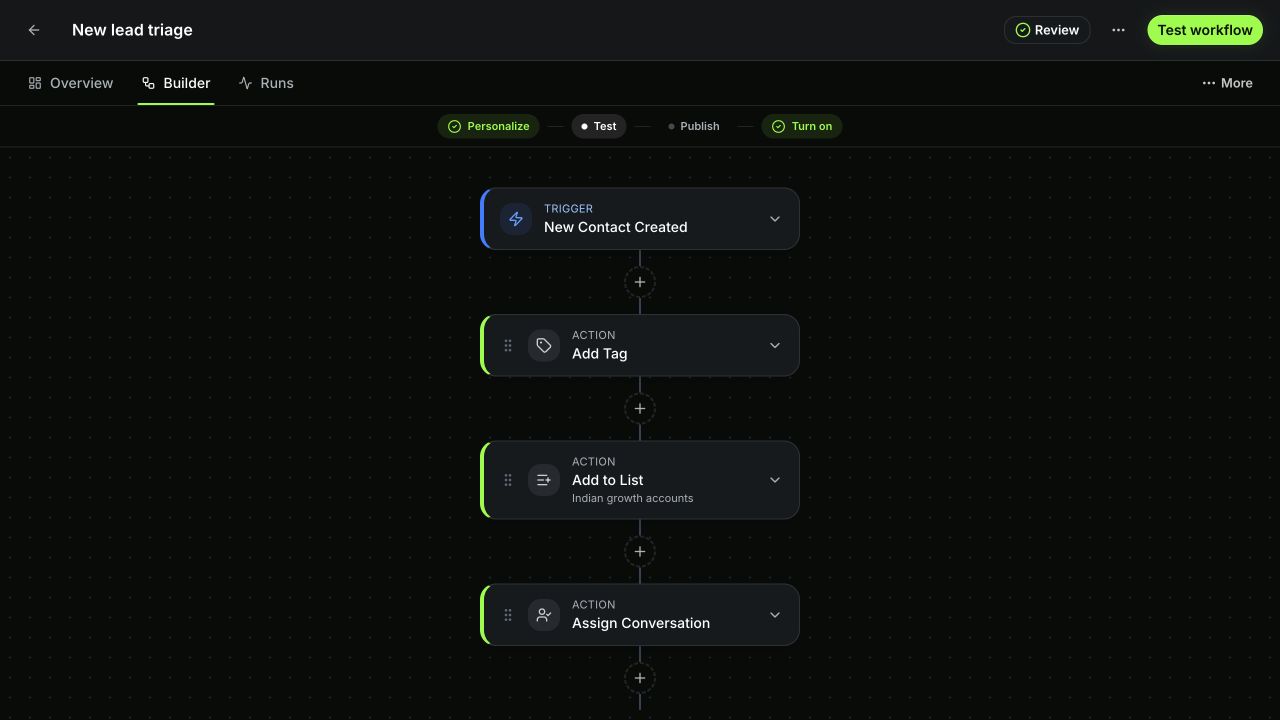 Open full size
Archive and restore
Archiving stops the automation and cancels waiting runs; versions and run history remain. Restoring returns it as Paused, which is intentional. Revalidate, test, and explicitly turn it on.
When not to retry
Do not retry when a receipt is uncertain, the customer already received the message, the CRM change was manually completed, the underlying provider is still unhealthy, or the saved input is no longer valid. Resolve or document the business outcome instead.
Escalation evidence
Preserve the workflow and run IDs, original and recovery version numbers, retry simulation result, receipt states, waiting-item ID if applicable, approximate times, and redacted error. Never rotate or disclose credentials as part of an unverified retry.
- Workflow paused when many runs could be affected
- Receipts checked before retry
- Retry simulation passed
- Only affected waiting work changed
- Rollback source version verified
- First recovered runs monitored